SSH keys
Save private keys once and reuse them across every SSH session.
Settings → SSH Keys holds named SSH keys shared across the organization, so the SSH terminal, file browser SFTP, and SSH tunnels can use them without a key picker every time.
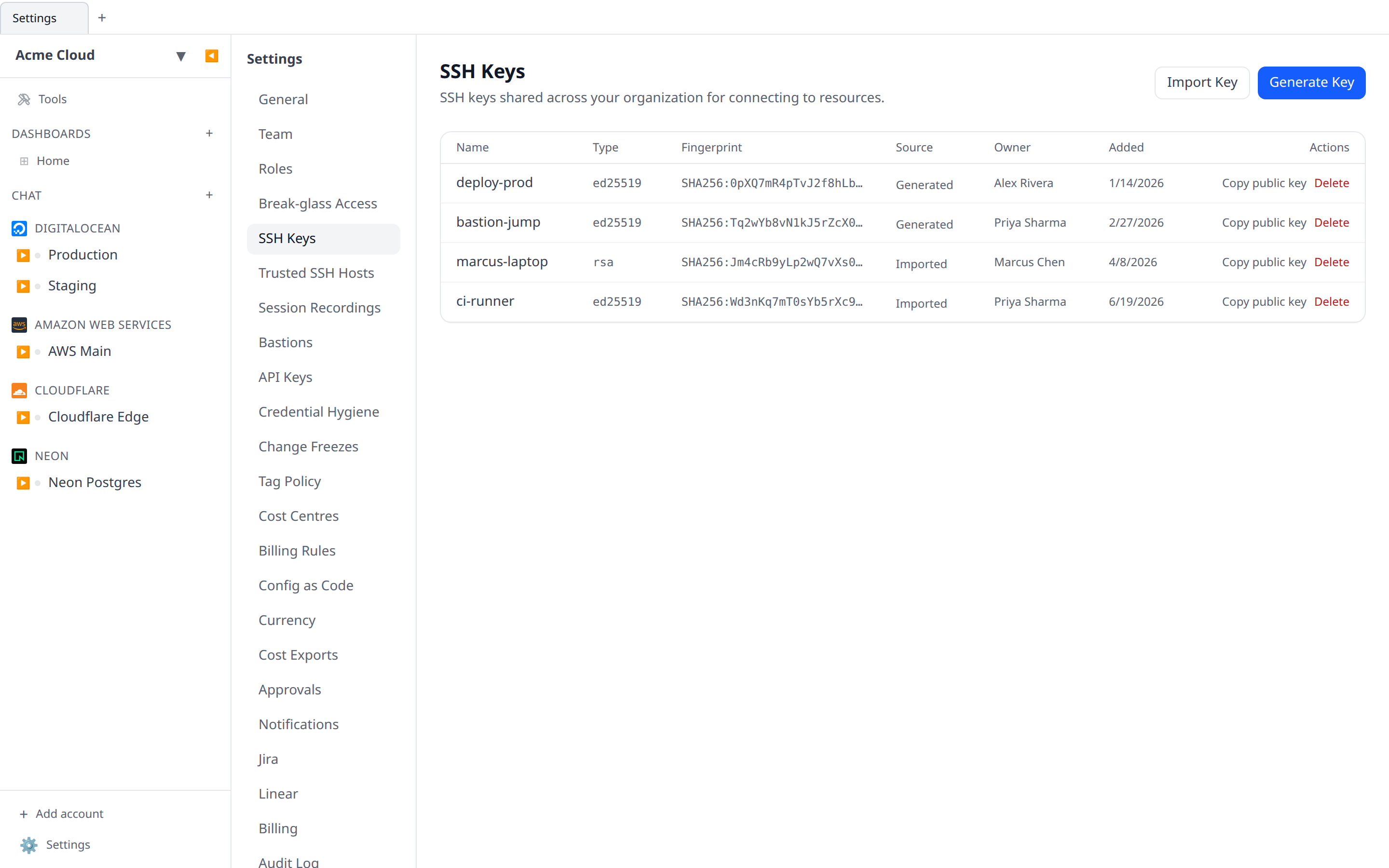
The page has two buttons — Generate Key and Import Key — and which one you want depends on who holds the private half. The table lists each key’s name, type, fingerprint, source (Generated or Imported), owner and date added, with Copy public key and Delete on each row.
Generate a key
- Settings → SSH Keys → Generate Key.
- Give it a name (
production-bastion, say). - Click Generate key.
Infrawrench mints an Ed25519 keypair and shows both halves once, under Public Key and Private Key, with a Copy private key to clipboard button. That dialog cannot be reopened — copy the private key now if you want it outside Infrawrench, or just close it and let Infrawrench hold the key on your behalf.
Import a key
- Settings → SSH Keys → Import Key.
- Give it a name.
- Paste the public key — the contents of
~/.ssh/id_ed25519.pub, not the private half. - Click Import key.
There is no field for a private key and none for a passphrase. Importing records the public half so Infrawrench can install it on new machines and identify it in pickers; the private key stays wherever you already keep it.
What each kind can do
That difference decides where a key works:
- A generated key is stored encrypted server-side, so the cloud can use it to open connections for you — web terminals, SFTP, tunnels, and agent-driven SSH all work. The desktop app can also use one for Linux applications without the private half ever reaching your machine: the cloud acts as an SSH agent and signs the authentication handshake, while the connection itself runs directly from your machine to the host. Each signature is an audited operation (
ssh.agent.signin the audit log). - An imported key has no private half on the server, so the cloud cannot authenticate — or sign — with it. Picking one for a web SSH session or tunnel fails with “SSH key has no private key data”. It is still the right thing to import when you connect from the desktop app, where the private key is on your own disk, or when you only need the public half installed on a new VM.
Either way the public half is shared with everyone in the organization.
Using a key
Any time a host asks for a key, the picker lists saved keys first. In desktop mode, it also lists keys found on disk (~/.ssh/), keys exposed by the 1Password SSH agent when it is running, and — on Windows — keys loaded in Pageant.
Removing a key
Settings → SSH Keys → (key) → Delete. Any hosts that were pinned to this key will prompt for a new key on next connection. You can delete your own keys; deleting somebody else’s needs the same permission as managing roles.
Managing keys from MCP and chat
The MCP server and the AI chat can manage keys too, via list_ssh_keys, create_ssh_key, import_ssh_key, and delete_ssh_key. They enforce the same ssh-keys:read / ssh-keys:write role permissions as this page, and deleting another member’s key requires team:role:write. Two safety properties to know:
- A key generated through a tool never returns its private key — it is stored encrypted and usable by id with
ssh_execand tunnels. If you need to download the private key for use outside Infrawrench, generate the key here in Settings instead. - In chat,
delete_ssh_keyis a destructive action, so it always waits for your Approve click.
Stored keys also plug into resource creation: the VM create tools (digitalocean_create_droplet, hetzner_create_server, EC2/GCE/Scaleway instances, and the generic create_resource) accept an sshKeyId, and the key’s public half is installed on the new machine — so “create a droplet I can SSH into with my deploy key” works end to end.
All tool-driven key changes appear in the audit log (ssh-key.create / ssh-key.import / ssh-key.delete).
Don’t do this
- Do not paste keys you use to sign git commits — use a dedicated key for server access.
- Do not share a single key among many users; each human should have their own, so the audit log is meaningful.
Finding keys nothing uses
The credential hygiene report lists org SSH keys with no recorded use over a window you choose — terminal sessions, fan-out runs, agent forwarding and the ssh_exec tool all count as use. Keys whose private half is stored server-side are ranked higher, because those are live credentials sitting in a database. Deleting one here removes Infrawrench’s copy; the line in the host’s authorized_keys is still yours to remove.