Weekly digest
A scheduled summary of last week's spend, top movers, sync incidents, and resource churn, delivered to Slack, Microsoft Teams, and email.
The weekly digest is a scheduled summary rather than an alert: once a week, Infrawrench Cloud sends one message per organization recapping the week that just ended. It uses the same Slack and Microsoft Teams channels you already route alerts to, and can also go to a plain email list.
Each digest covers the last complete Monday-to-Sunday week and contains:
- Total spend for the week, with the change against the week before — absolute and percentage. Mixed-currency organizations get one line per currency.
- Top movers — the three providers and three services whose spend changed the most week-over-week, from the cost pipeline.
- Sync incidents opened during the week.
- Resources added and removed during the week.
- Projected spend — what those additions and removals do to your monthly run-rate, from the same cost estimates the create form quotes. This is deliberately separate from the spend total above: a cluster spun up last Sunday barely registers in last week’s bill and is most of next month’s. Omitted when nothing that changed could be priced.
- Biggest cost move — the single change of the week that moved the run rate most, from cost per change, with the charge-type basis and the window it was measured over. Different again from the two lines above it: the total is what was billed, the projection is what the rate cards think new resources will cost, and this is what the provider’s own daily billing says one specific edit actually did. Omitted when nothing in the week could be measured — which is not the same as nothing having moved.
- Optionally, an AI-written opening paragraph summarizing what changed (off by default — see below).
Cloud only. Like the alert transports, the digest is composed and sent by the cloud’s background poller. The desktop app does not send digests.
Turning it on
Go to Settings → Notifications and tick Send a weekly digest in the Weekly digest section. The first scheduled digest arrives at the next send time — enabling mid-week doesn’t immediately send a stale one. If you want to see one right away, press Send now: it composes last week’s digest and sends it immediately, which is also the quickest way to confirm the whole pipeline works.
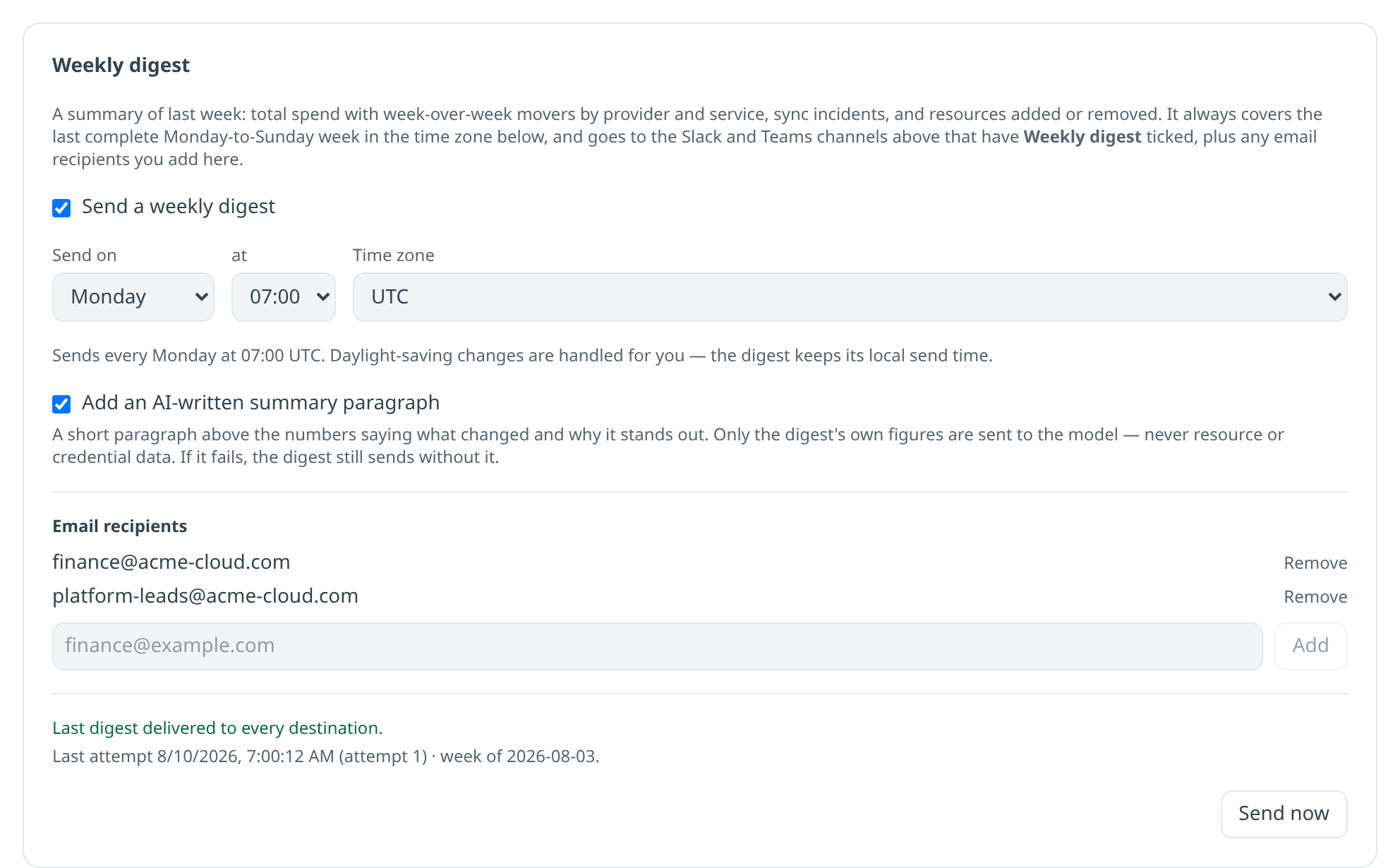
The settings are org-wide and take the Organization settings permission, exactly like the Slack and Teams routing above them.
Choosing when it arrives
Three controls decide the send time: a day of the week, an hour, and a time zone. The default is Monday at 07:00 UTC, which is what every organization gets until it changes something.
The time zone does two jobs. It sets the wall clock the send time is read against, and it decides where the week boundary falls: the digest always covers the last complete Monday-to-Sunday week in that zone. An organization on Asia/Tokyo closes its week several hours before one on America/Los_Angeles, and each gets the week its own calendar just finished.
Daylight-saving changes need no attention. The digest keeps its local send time across the transition in both directions:
- On the spring-forward day, if your send hour is one the clock skips over, the digest goes out at the next hour the clock actually reaches — late by up to an hour, never skipped.
- On the fall-back day, the repeated hour does not produce a second digest.
Picking a later day does not change what a week is — a Wednesday digest still recaps the previous Monday-to-Sunday week, not the trailing seven days. That keeps it aligned with the cost dashboards and with everyone else’s idea of “last week”.
One caveat worth knowing: cost data is collected per day, so a far-from-UTC organization may see a few hours of spend land in the adjacent week. Both weeks are still reported in full — nothing is lost, and there is no finer truth available, because provider billing exports are themselves dated to a day rather than an instant.
Choosing where it goes
Slack and Teams
The digest is delivered through alert routing like everything else, under the Weekly digest trigger. To send it somewhere specific — #finance takes the digest and budget alerts while #ops keeps only sync failures — add a rule in the Alert routing section of Settings → Notifications whose Trigger condition names Weekly digest, and pick the Slack channels or Teams webhooks under Send to.
Until you write any rules, the built-in default routes every trigger except Drift to every connected channel, so a new organization’s digest reaches all of them. Nothing sends until the org-level toggle is enabled either way, so a channel is never surprised by an unrequested message.
Two properties of the digest are fixed rather than routed. Mobile push is not a destination — the digest is channel-only, and a rule that sends it to push silently drops it. And quiet hours never hold it back: the digest already has a schedule of its own, so holding it until a window closed would only make it late.
The Weekly digest section also carries an email recipient list. Addresses here get the same digest as a formatted email with both an HTML and a plain-text part.
Recipients are an organization-level list rather than a per-member setting, and deliberately so: the digest is a destination-shaped notification like a Slack channel, not a personal alert. That also means an address doesn’t have to belong to an Infrawrench user — a finance@ alias or a distribution list works fine, and reaches people who never sign in.

If your deployment has no mail provider configured, the section says so and email recipients receive nothing. Self-hosters: email goes out through Mailgun, so this needs MAILGUN_API_KEY, MAILGUN_DOMAIN and EMAIL_FROM set on the server — plus MAILGUN_API_BASE if your Mailgun account is in the EU region. Without them, email delivery is skipped with a log line and the digest still reaches Slack and Teams.
The AI summary paragraph
Ticking Add an AI-written summary paragraph puts a short, plain-language opening above the numbers — two or three sentences on what actually moved and which provider or service explains it.
It is off by default and opt-in per organization, so nothing starts sending your data to a model without an explicit choice. What gets sent is only the composed digest itself: the currency totals, the week-over-week deltas, the mover names with their spend, and the three counts. Resource details, account metadata, and credentials never leave the deployment.
The paragraph is strictly additive. If the model call fails, times out, or the deployment has no LLM key configured, the digest still sends with all of its deterministic content and simply loses the paragraph.
Weeks with no recorded cost data say so instead of printing zeros — typically an organization that hasn’t connected an account with cost collection yet.
When something goes wrong
The Weekly digest section shows the outcome of the most recent attempt, so a digest that has quietly stopped arriving is visible without reading server logs:
| Status | What it means | What happens next |
|---|---|---|
| Delivered to every destination | Everything landed. | Nothing to do. |
| Only partly delivered | Some destinations took it, some rejected it. | Not retried automatically — a retry would post the digest a second time where it already landed. Fix the failing destination and press Send now. |
| Failed to send | Nothing landed anywhere. | Retried automatically a few times with a growing backoff. If those are exhausted the digest is parked until next week, and the reason stays on screen. |
| Nowhere to go | The digest is enabled but no channel is ticked and no email recipient is listed. | Add a destination. |
The status line also shows when the last attempt ran, which week it covered, and — while a retry is pending — when the next one is due.
On the phone
The mobile app’s Settings → Notifications carries the parts of the digest worth having in a pocket: the on/off switch, the AI summary paragraph opt-in, Send now, and the same last-attempt status — a failing digest is visible there too, which is the whole point of the status block. The current schedule and the email recipient list are shown, but read-only: changing the send day, hour, or time zone and adding or removing recipients stay on the web app, where a time-zone picker and an address list belong.
Scheduling details
- Delivery is exactly-once per week per organization, including across worker restarts and multiple workers.
- If the background workers were down at the send time, the digest is sent as soon as they are back — still covering the last complete week — rather than being skipped.
- Changing the schedule never replays a week that already went out, and never sends the same week twice, whichever direction you move the time zone.