Billing and plans
What is free, what is paid, and how to upgrade.
The desktop app in local-only mode is free and has no account. Billing is managed on the web app or, when signed in to a cloud organization, from the desktop app’s Settings tab (checkout opens in your browser).
Plans
| Feature | Free | Paid |
|---|---|---|
| Users | 1 | Unlimited |
| Connected accounts | 3 | Unlimited |
| Plugins | All 49 | All 49 |
| Dashboards | Yes | Yes |
| SSH terminal / SQL | Yes | Yes |
| Audit log | No | Yes |
| Custom graphs | No | Yes |
| Deploy from GitHub | No (CLI deploys free) | Yes |
| API keys | No | Yes |
| AI chat | $5 usage / mo included | Metered, pay-as-you-go |
| Price | $0 | $20 / seat / mo |
| Prepaid capacity | — | $200 / seat / 2 years |
The user and account limits are enforced: on the free plan, inviting a teammate or connecting a fourth account is refused with a prompt to upgrade.
There are two ways to hold a paid seat, and you can mix them: rent seats by the month at $20 each, or buy them outright as capacity slots at $200 for two years. Either one puts the organization on the paid plan.
Free orgs (no payment method on file) can use the AI chat up to $5 of metered usage per month; after that the agent refuses new turns until the next month or until you upgrade. The same allowance covers infra.ai() in workflows — it is one org-wide AI budget, not one per feature. Paid orgs are billed for that usage through Stripe with no built-in limit; there is no self-serve cap control, so ask us if you want one set.
Upgrade
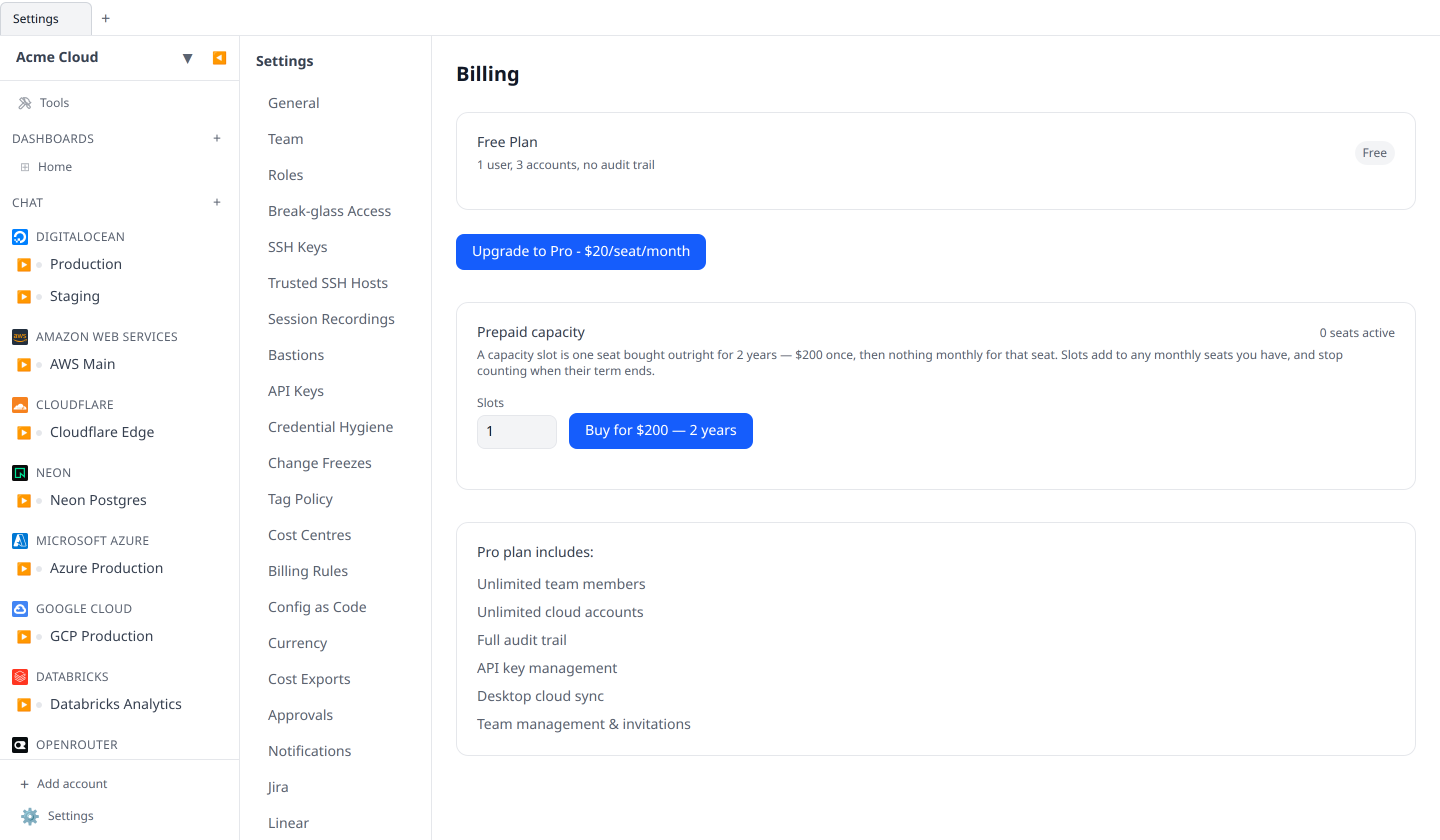
Settings → Billing → Upgrade to Pro - $20/seat/month. That takes you to Stripe Checkout, which is where the card goes in and where the seat count is set — the quantity starts at 1 and you adjust it there, not on the Billing page. You are on the paid plan as soon as Stripe confirms.
The Billing page itself is a current-plan card (with a status pill and, on a paid plan, the seat breakdown), that upgrade button, a Manage subscription button into the Stripe portal, and the Prepaid capacity card below. On the free plan it also lists what Pro includes. There are no side-by-side plan cards here — those belong to onboarding.
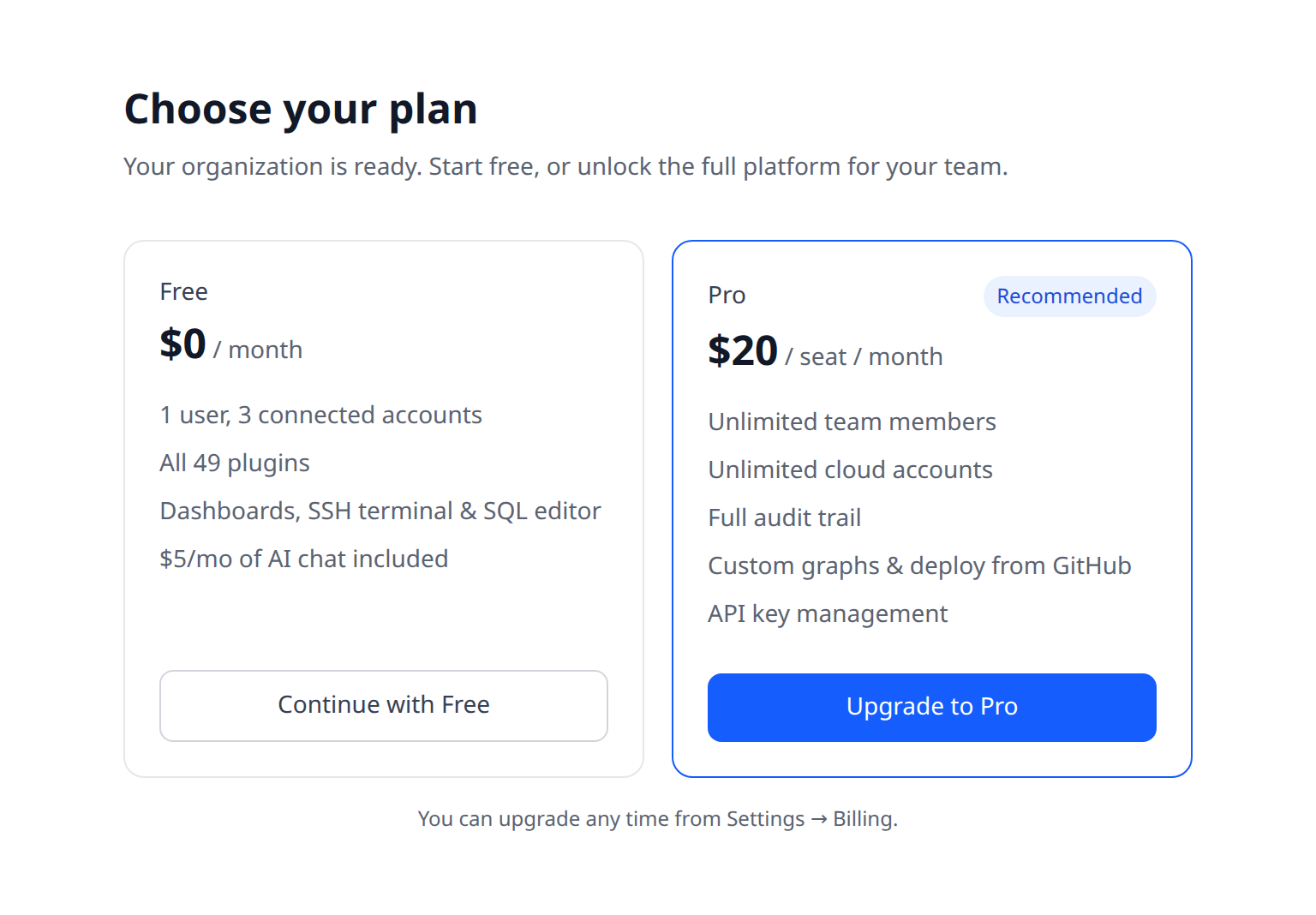
You are also offered the choice right after creating an organization — the onboarding flow shows the Free and Pro plans side by side. Picking Continue with Free costs nothing and you can upgrade later from Settings; picking Upgrade to Pro takes you straight to checkout.
Seats
A seat is one user in your organization, and a pending invitation reserves one. If you invite a fourth teammate while on 3 seats, you will be prompted to confirm adding a seat before the invite is sent; the new seat is billed pro-rata from that day. Adding a seat this way needs billing permission as well as invite permission.
Removing a member (or a member deleting their own account) frees their seat automatically: your monthly seat count drops by one, and the next invoice bills the lower count — no mid-cycle credit, since the seat was already paid through the period. Seats you bought beyond your current member count are kept, and the count never drops below one; you can always adjust it manually from the Stripe portal under Settings → Billing.
Prepaid capacity slots count toward the same total. Your capacity is your monthly seats plus your active slot seats, and the invite prompt is measured against the sum — so an organization with 2 monthly seats and 3 slots can hold 5 people. Slots are also counted first when a member leaves: if slots already cover everyone left in the organization, the monthly count shrinks rather than billing you twice for the same people.
Prepaid capacity slots
A capacity slot is one seat bought outright instead of rented: $200 once, and that seat is yours for two years. Nothing renews, nothing to cancel, and no monthly invoice for that seat.
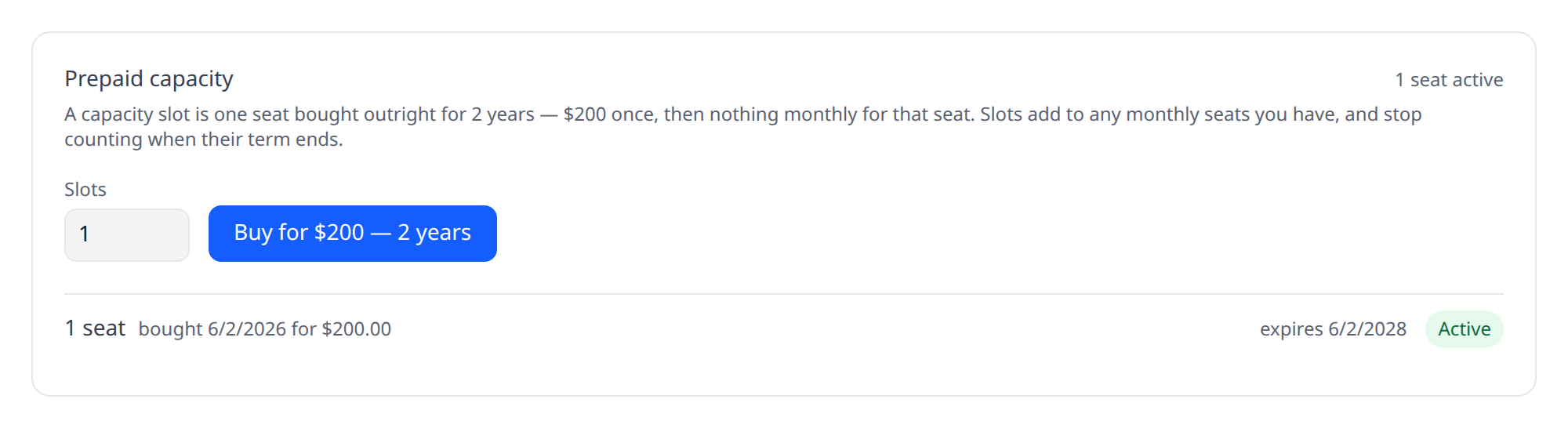
Buy them under Settings → Billing → Prepaid capacity. Pick how many slots you want, pay once, and the seats appear as soon as Stripe confirms the payment. You get a Stripe invoice for the purchase like any other charge.
Worth knowing:
- A slot is a paid plan on its own. An organization holding a slot has every paid feature — audit log, custom graphs, API keys, deploys — with no monthly subscription at all.
- Slots add to monthly seats, they don’t replace them. Mixing is fine, and often the point: buy slots for the people who are definitely staying two years, rent monthly seats for the rest.
- Each purchase has its own term. Buying three slots today means three seats expiring together in two years; buying one more next month gives that one its own end date. The billing page lists every purchase with its expiry.
- When a term ends, that capacity simply stops counting. Nothing is deleted and nobody is removed, but you are then over capacity: invites are refused until you buy again or prune. If slots were your only paid seats, the organization drops back to the free tier and keeps read-only access over the free limits, exactly like a cancelled subscription.
- When you are full on slots alone, the invite prompt cannot offer “add a seat for $20/month” — there is no subscription to grow. It sends you to Billing to buy another slot (or to start a monthly subscription) instead.
- Refunds take the seats back. A refunded purchase stops granting capacity immediately, and stays in the purchase history.
Self-hosted deployments only see this option when STRIPE_CAPACITY_SLOT_PRICE_ID is configured; without it the card is hidden and only the monthly plan is offered.
Invoices
Settings → Billing → Invoices. Download any invoice as PDF. Tax info can be set in Settings → Billing → Tax.
Cancel
Settings → Billing → Cancel plan. You drop back to the free tier at the end of the current period. If you are over the free limits (more than 1 user or 3 accounts), you keep access in read-only until you prune.
Cancelling the monthly subscription does not touch prepaid capacity slots — they are already paid for through their term, so you stay on the paid plan with that many seats until the last one expires.
Trial
There is no separate time-limited trial: the free plan does not expire, so you can evaluate for as long as you like and upgrade when you are ready. Starting checkout without completing payment does not change your plan — you stay on the free tier until Stripe confirms the subscription. If a trial period is applied to your Stripe subscription itself (for example a promotional offer), the plan shows as a trial and works like the paid plan until the trial ends.
Hosted build time
Deploys from the web app (and deploy-on-push) build on Infrawrench-hosted workers. When your deployment has build metering configured, that worker time is billed per second through a Stripe meter alongside the seat price — each deploy run records exactly how many seconds it used, and the run history shows it.
Plan-only previews build nothing and are never metered. Builds on your own
machine (infrawrench deploy locally) or on a buildOn host you provide are
yours already and never billed. Complimentary organizations are never billed.