Work in progressThese docs are still being written and are currently mostly AI-generated. Some details may be inaccurate or incomplete.
UploadThing
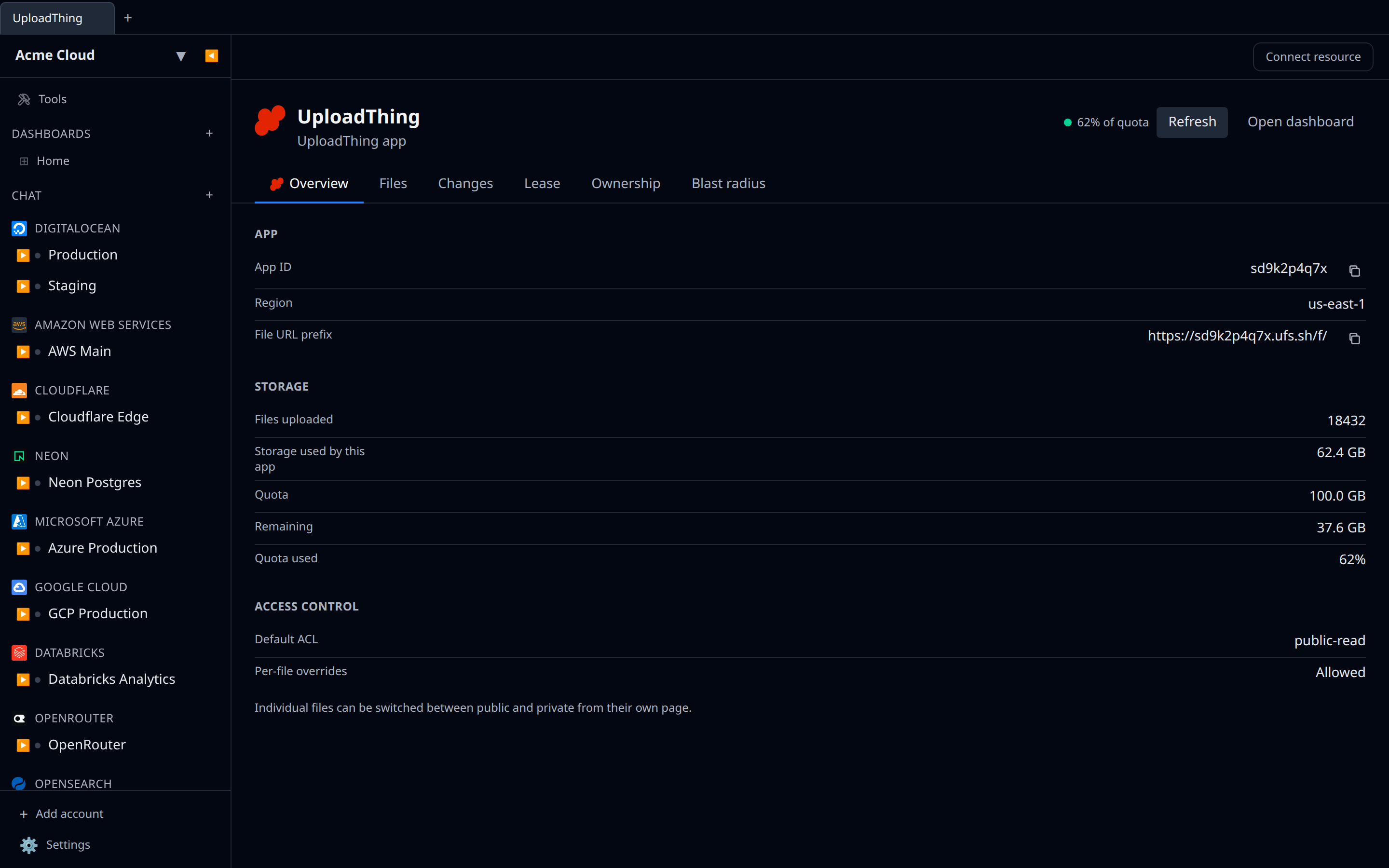
Browse, upload, rename, re-permission, and delete the files in an UploadThing app, and watch its storage quota.
What you can manage
- The app — its ID, region, default ACL, and storage quota
- Files — browse, upload, rename, change access, delete
An UploadThing API key is scoped to a single app, so one Infrawrench account is one UploadThing app. Add a second account for a second app.
Because a second app is impossible rather than merely unusual, the account is the app: opening it lands you straight on the app page below, and the sidebar expands the account directly to its files. See providers with a single root.
Credentials
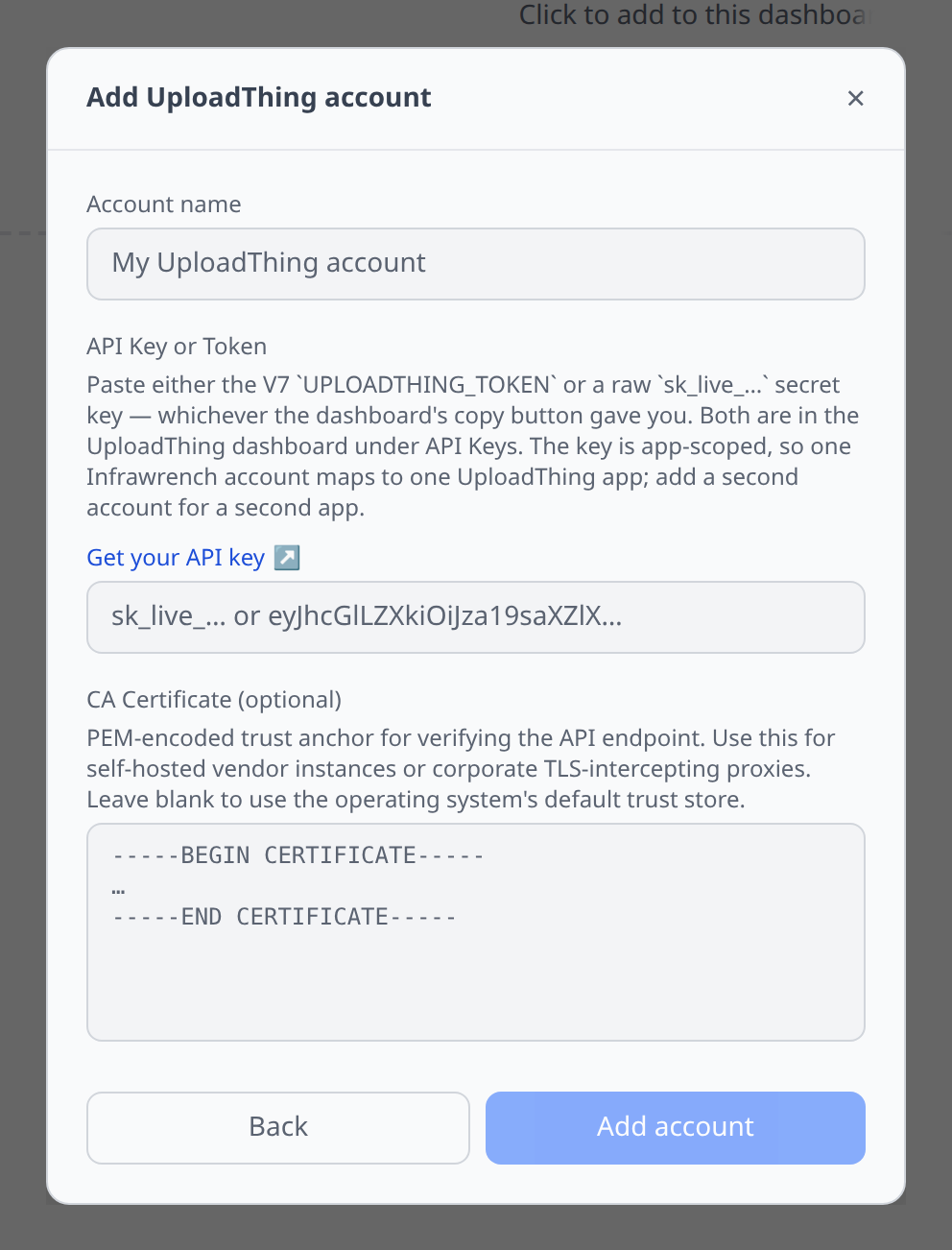
UploadThing dashboard → API Keys. Paste either value into the single field — Infrawrench works out which one you gave it:
- the V7 token (
UPLOADTHING_TOKEN), which is what the copy button hands out — base64-encoded JSON holding the key, the app ID, and the region - a raw
sk_live_…secret key, if your app still uses one
Notable flows
- File browser on the Files tab — upload from your machine, download (single file, or a zip of a multi-file selection), and delete, backed by UploadThing’s own listing. This tab is the file listing; the Overview tab deliberately does not repeat it.
- Upload from URL — takes a public URL, downloads it, and pushes the bytes to UploadThing. Optionally set a custom ID and, where the app allows it, the file’s access level.
- Make public / Make private on a file, when the app allows per-file ACL overrides. These buttons are hidden when it does not, because the API rejects the change rather than ignoring it — flip the app-wide default in the UploadThing dashboard instead.
- Signed URL is a resolvable output on every file. That is how a private
file is read: the public
https://<app-id>.ufs.sh/f/<key>URL only works for files whose ACL ispublic-read. - Failed uploads show up on the Potential savings page — an upload that never completed cannot be served and is safe to delete.
Tips & limits
- Every file is listed — there is no cap. A very large app therefore costs a proportionally longer sync each poll cycle, since UploadThing pages its listing 500 at a time and Infrawrench walks all of it.
- On the free tier the storage quota is shared across every free app on the account, so “storage used by this app” and “counted against quota” can differ. The app page shows both when they do.
- UploadThing stores files in a flat namespace — there are no folders.
Uploading a folder uploads its contents, keeping the folder’s relative
path in each file’s name (
photos/sub/a.png). - The file browser rebuilds the tree from those names. A
/is treated as a separator, so an uploaded archive browses as folders rather than one screen of long identical-looking rows. The folders are derived, not stored: deleting one deletes every file beneath it, and an empty folder cannot be created because there would be nothing to derive it from. - The page is titled with your account name, because UploadThing’s API
exposes no app name —
getAppInforeturns the app ID, the default ACL, and the override flag, and nothing else. Rename the account to rename the page; the app ID is still on it, copyable. - Content type is only available on a file’s own page. UploadThing’s file listing does not include it, so it is fetched separately when you open a file.
- Downloads go through a per-file grant. UploadThing issues no read token
covering many files, so each download asks the API for a short-lived signed
URL first. That is what makes downloading a private file work — its plain
ufs.shURL returns 403. - Files cannot be moved between apps, and a file’s key is assigned at upload and never changes. Renaming changes the display name only.