Account settings
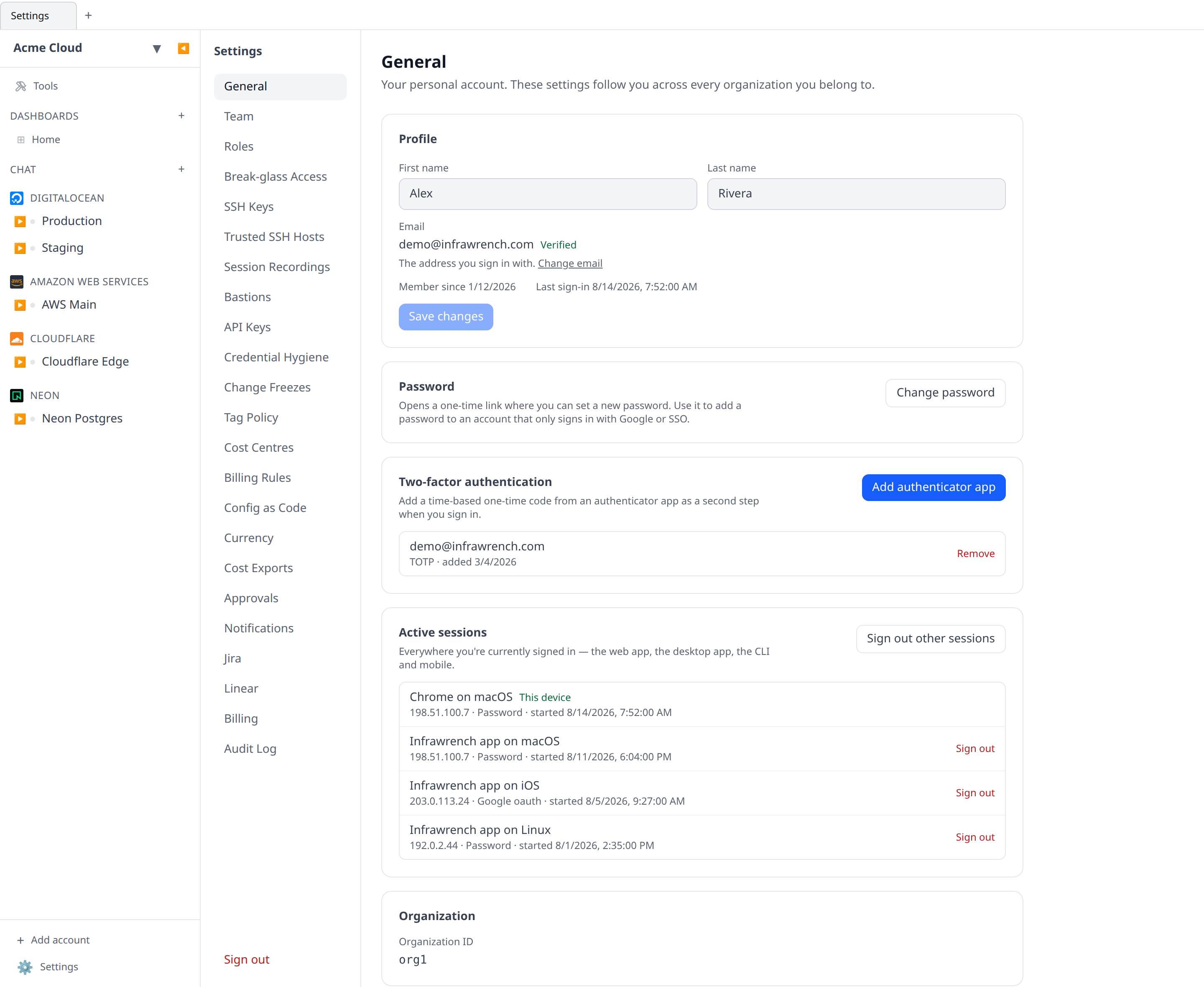
Manage your name, password, two-factor authentication, and active sessions from Settings → General.
Settings → General is your personal account, not the organization’s. Everything on this page follows you across every organization you belong to — changing your name or turning on two-factor here applies everywhere you sign in.
Your identity is managed by WorkOS, the same service that handles sign-in. infrawrench never stores your password.
Confirming it’s you
Changing your email, generating a password link, adding or removing two-factor, and signing out every other device all need a recent sign-in — not just a valid session. If you last signed in more than ten minutes ago, infrawrench sends you back through sign-in first and returns you to the page you were on. Nothing you had typed is submitted until you’re back.
This is deliberately stricter than the rest of the app. A session cookie lasts a long time by design, and each of these actions can hand over the account permanently — so a laptop left open, or a session someone else got hold of, shouldn’t be enough on its own.
Everything else in settings works from any valid session.
Profile
Edit your first name and last name and press Save changes. The name appears next to you in team lists, the audit log, and anywhere a resource records who changed it.
If your email shows as Unverified, use Resend verification email to get a fresh link.
If you signed in with Google, Microsoft, GitHub, Apple, or Salesforce, those show under Connected accounts, and the address you started with is whatever that provider gave us.
Changing your email
Your email is the identifier you sign in with, so changing it moves your account — it’s confirmed in two steps.
- Change email next to your address.
- Enter the new address and press Send confirmation code.
- Read the code from the new mailbox and enter it.
Nothing moves until that code comes back. Close the dialog, mistype the address, or never receive the code, and your account stays exactly where it is — so there’s no way to strand yourself on an address you can’t read. The code expires after a few minutes; start again for a fresh one.
If the new address already belongs to another infrawrench account, the first step fails and tells you so.
If you sign in with Google or SSO, changing your address here does not change it at the provider. You’ll still sign in through that provider as before — this only changes the address infrawrench knows you by. Make sure you can still get in before you rely on it.
Password
Change password opens a one-time link to the hosted password page, where you can set a new one.
This is also how you add a password to an account that has only ever signed in through Google or SSO — useful if you want a fallback that doesn’t depend on the identity provider being reachable. The link is single-use and expires; generate a new one any time.
Two-factor authentication
Add a time-based one-time password (TOTP) from an authenticator app as a second step at sign-in.
- Settings → General → Add authenticator app.
- Scan the QR code with your authenticator app, or copy the setup key and enter it manually.
- Type the six-digit code the app shows and press Turn on two-factor.
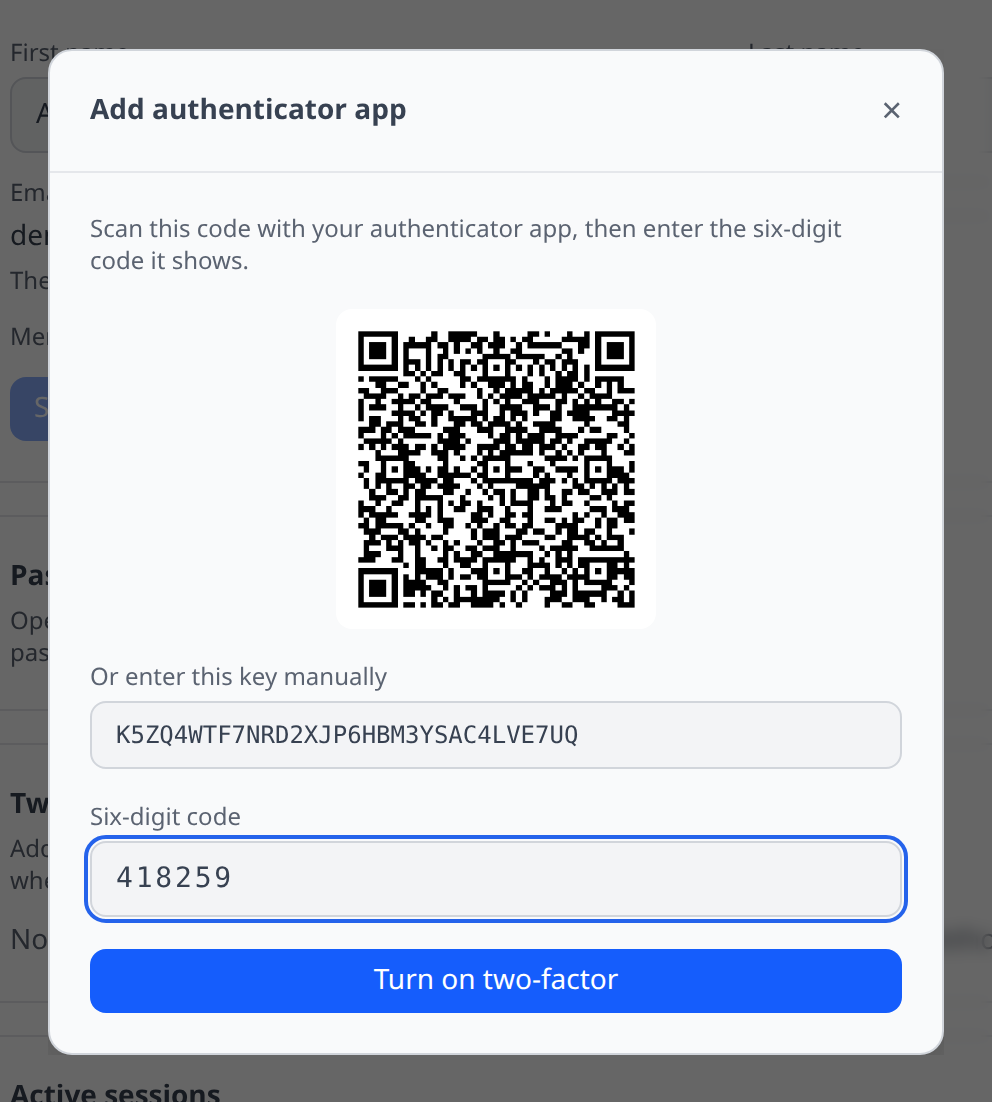
The factor is only active once you’ve entered a valid code — closing the dialog before that discards it. You can enrol more than one app (for example a phone and a desktop client) so losing one device doesn’t lock you out.
To remove one, press Remove next to it. Removing your last factor turns two-factor off for your account.
Whether two-factor is required at sign-in — for you or for everyone in your organization — is a policy set in the WorkOS dashboard by whoever administers your authentication. Enrolling here makes the factor available; it doesn’t by itself force a challenge.
Active sessions
Every place you’re currently signed in: the web app, the desktop app, the CLI, and mobile. Each row shows the browser or app, the IP address, the sign-in method, and when the session started. The one you’re using right now is marked This device.
- Sign out on a single row ends that one session.
- Sign out other sessions ends every session except the one you’re using — the fastest response to a lost laptop or phone.
Signing out a session invalidates it immediately; that device has to sign in again. To end your current session, use the normal sign-out in the app menu.
Deleting your account
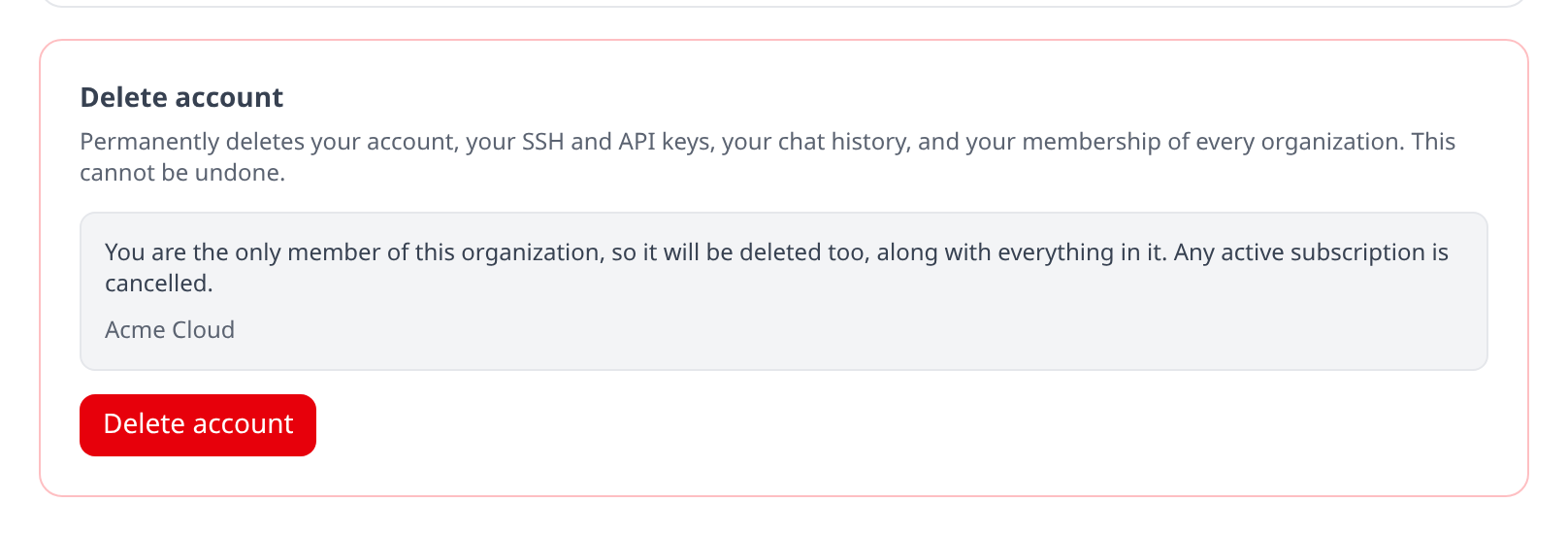
At the bottom of Settings → General is Delete account. It permanently removes your account, your SSH keys, your API keys, your push devices, your chat history, and your membership of every organization. It cannot be undone, and it needs a recent sign-in like the other sensitive actions.
What happens to your organizations depends on who else is in them, and the page tells you before you confirm:
- You’re the only member — the organization is deleted with your account, along with every account, resource, dashboard and workflow in it. An active subscription is cancelled at the same time.
- Other people are in it, and another owner exists — you simply leave. The organization and everything in it carries on.
- Other people are in it and you’re the only owner — the Delete account button is disabled and the organizations are named. Promote someone else to owner in Settings → Team first. Nothing is deleted in the meantime.
That last case is the only thing standing between one person leaving and a team losing its organization, so there’s no override for it.
The button on the card does not delete anything — it opens a confirmation dialog that asks you to type your email address, exactly, before its own Delete account button becomes clickable. So the warning is on the card and the typed confirmation is in the dialog that follows it.
Your entries in an organization’s audit log stay, since they’re that organization’s record rather than yours — they just stop showing a name. The deletion itself is recorded in every organization you were a member of.
On mobile
The mobile app mirrors all of this under Settings → (your email): profile, password reset, two-factor enrolment, session management, and account deletion, against the same account. Deleting there signs you straight out and returns you to the sign-in screen.
API
These same operations are available over HTTP under /api/profile — see the OpenAPI reference. They’re user-scoped, so they authenticate with a session cookie or a WorkOS access token rather than an organization API key.