Alert routing rules
Route each alert to the right channel by condition, hold alerts during quiet hours, and escalate the ones nobody acknowledges.
Every alert Infrawrench raises — a sync failure, a budget crossing, a cost anomaly, a probe going down — passes through your organization’s routing rules on its way out. A rule says which alerts it is about, where they go, whether to hold them at night, and what to do if nobody responds.
Cloud-managed. Rules live with your organization in the cloud, and the cloud’s background poller applies them as alerts are raised. You can edit them from the web app or from the desktop app’s Settings tab while signed in to your organization — the desktop app edits the same cloud configuration, it does not keep a local copy. There is no rules editor on mobile; the mobile app carries your personal push mutes instead.
The shape of a rule
A rule has four parts:
| Part | What it says |
|---|---|
| When | Conditions the alert must satisfy. All of them must match — “or” is a second rule. |
| Send to | Slack channels, Teams channels, and mobile push, in any combination. |
| Quiet hours | Optional. A recurring local-time window during which matching alerts are held rather than sent. |
| Escalation | Optional. Extra destinations to notify if nobody acknowledges within N minutes. |
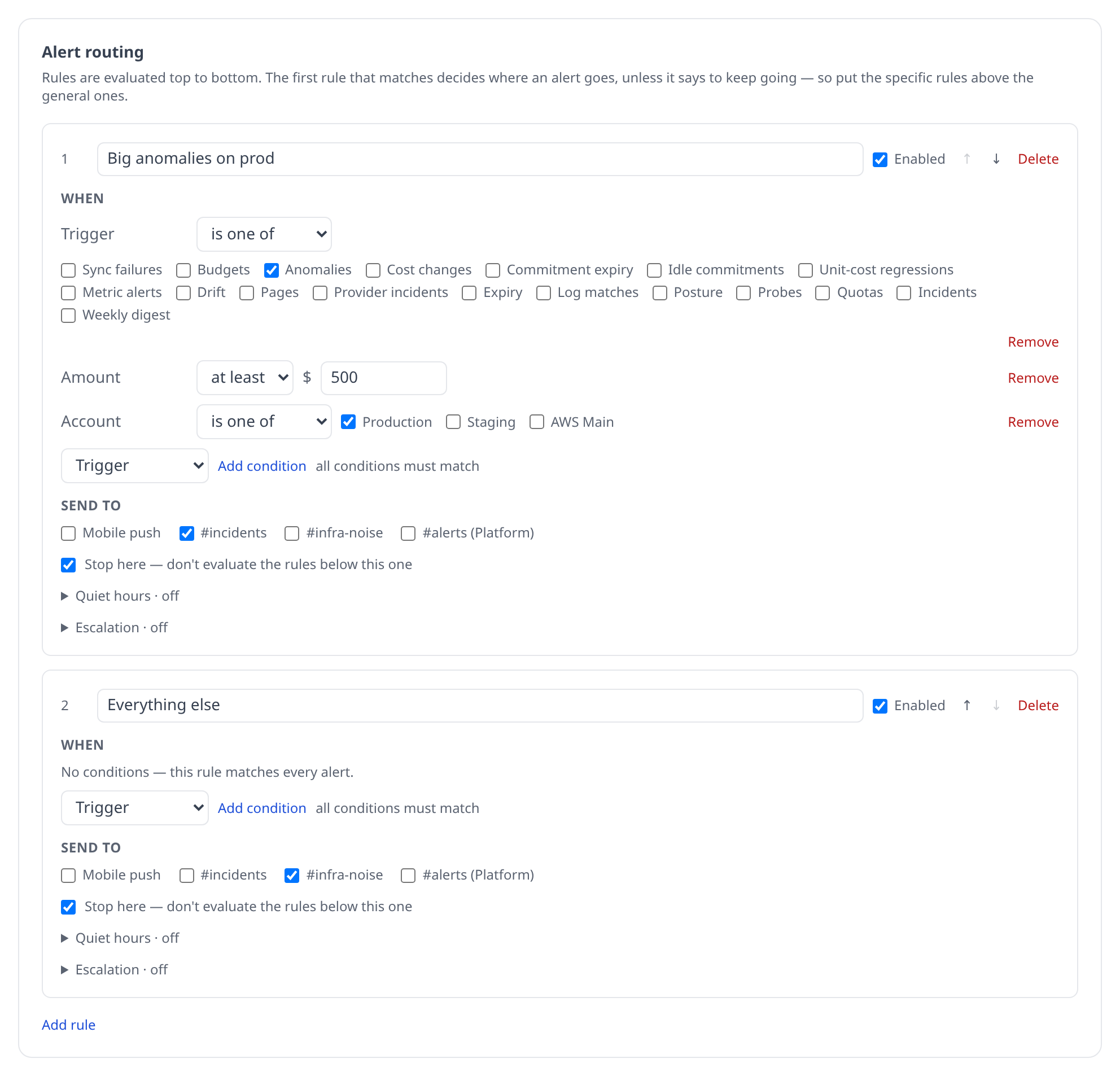
Rules are a list, evaluated top to bottom, and the first one that matches decides where the alert goes. That ordering is what makes the common ask expressible:
- Big anomalies on prod — trigger is
Anomalies, amount at least$500, account isprod→#incidents - Everything else →
#infra-noise
The first rule takes the expensive ones; whatever it does not take falls through to the second. Neither rule has to know about the other.
A rule can also be a tee rather than a branch: untick Stop here and evaluation continues past it, so an audit channel can copy every alert without shadowing the rules below it.
Conditions
| Condition | Matches on |
|---|---|
| Trigger | Which kind of alert it is — sync failures, budgets, anomalies, drift, pages, probes, declared incidents, and so on |
| Severity | info, warning or critical, ordered, so “at least warning” is a floor rather than an equality |
| Account | The account the alert is about |
| Provider | The plugin — route AWS incidents to the team that runs on AWS |
| Resource type | The kind of thing, for alerts scoped to one |
| Amount | Money at stake, for budgets and cost anomalies |
| Name | The alert’s natural key — an anomaly’s service, a probe’s name, a metric rule’s name |
| Message text | A substring of the alert’s title or body, for anything the fields above do not cover |
One rule worth knowing: a condition about a fact the alert does not carry never matches, in either direction. An account condition does not match an alert that is not about an account — not with is one of, and not with is not one of either. A provider status incident spans your whole organization, so it will not be caught by a rule that is plainly about one account. Rules that want the organization-wide alerts simply leave the account condition off.
Quiet hours
A rule can carry a recurring window — say 22:00 to 08:00 in Europe/Berlin, weekdays only — during which its alerts are held rather than dropped. A held alert is queued with its original text and delivered the moment the window closes, so nothing is lost; it just arrives at breakfast instead of at 3am.
Set Send anyway when severity is at least to let the urgent ones through. Critical is the usual choice: sleep through budget warnings, wake for a page.
Some alerts ignore quiet hours entirely, because holding them would change what they mean:
- Pages raised by
infra.page(...)— the whole purpose of the call is to interrupt. - Approval requests — a run is blocked on the answer and no decision counts as a denial, so holding one until morning would silently deny it.
- The weekly digest — it already goes out at an hour you chose.
The Recent held and escalating alerts list at the bottom of the card shows what is currently queued and when it will send.
Escalation
Give a rule an escalation policy and every alert it sends carries an Acknowledge button on its Slack message. If nobody presses it within the configured number of minutes, the alert goes out again — retitled Unacknowledged: … — to the escalation destinations.
Acknowledging is a race that exactly one person wins: two people pressing at the same moment produce one acknowledgement, and an alert that already escalated cannot be retroactively silenced.
Escalation goes one hop. There is no chain, so an unacknowledged alert cannot ping-pong between two channels forever.
Two limits worth knowing before you rely on it:
- Acknowledgement is a Slack button. An alert routed only to Teams or to mobile push has no way to be acknowledged, so it will always escalate. Route escalating alerts to at least one Slack channel.
- An alert that reached nobody does not escalate. There is nothing to escalate from, and a “nobody acknowledged” message about an alert nobody ever saw is noise.
Mobile push is still personal
Mobile push as a destination means “the organization’s phones” — but each member’s own mute list still applies on top. A routing rule decides whether the organization is told; a member decides whether their phone rings. An admin cannot un-mute somebody else’s notifications, which is why the per-member toggles stayed on the push settings rather than moving into the rules table.
If you have not written any rules
An organization with no saved rules behaves as if it had one: everything except resource drift, to every connected channel and to mobile push. That is exactly what the per-channel checkboxes did with every box ticked, so connecting a Slack channel still works on day one without opening the rules editor.
Press Start from the default and edit it to turn that into a real rule you can modify. Adding a channel later is picked up automatically while you are still on the default; once you have saved rules, a new channel is a destination you have to name.
Permissions
Editing routing rules needs the Organization settings permission (org:settings:write) — a rule decides who in your organization hears about an incident, which is an admin decision. Your own push mutes need no permission at all.
From the CLI
infrawrench routing              # the rules, in evaluation order
infrawrench routing queue        # alerts held for quiet hours or awaiting acknowledgement
infrawrench routing --json       # the same, as JSON
routing is the fastest answer to “why did that page reach me” (or not): it prints each rule as a sentence, in the order the server evaluates them.
Empty rules and swallowed alerts
Two shapes look like mistakes and are not:
- A rule with no conditions matches every alert. Useful as the last rule in the list.
- A rule with no destinations swallows the alerts it matches, and — because it still counts as a match — stops the rules below it from seeing them. That is how you say “never tell anyone about these”. The editor warns when a rule is in this state, since it is also what a half-finished rule looks like.