Google Cloud
Manage Compute Engine, GKE, Cloud SQL, App Engine, BigQuery, and GCS.
What you can manage
- Projects — the GCP projects your service-account key can see, so surfaces can offer a picker instead of asking for a project ID.
- Compute — Compute Engine VM instances.
- Kubernetes — GKE clusters (links to the Kubernetes plugin).
- Databases — Cloud SQL (Postgres, MySQL).
- Analytics — BigQuery datasets and tables.
- App hosting — App Engine services.
- Storage — Cloud Storage buckets.
- AI/ML — Vertex AI endpoints and a curated list of Vertex AI Gemini chat models.
Credentials
Paste a Service account key (JSON) — download from GCP Console → IAM & Admin → Service Accounts → Keys → Add key. The service account needs the Viewer role (or equivalent read permissions) on the project, plus any roles required for the resources you want to manage (Compute Admin, Cloud SQL Admin, etc.).
You can optionally set a Project ID to override the project embedded in the key. Leave blank to use the project from the key file.
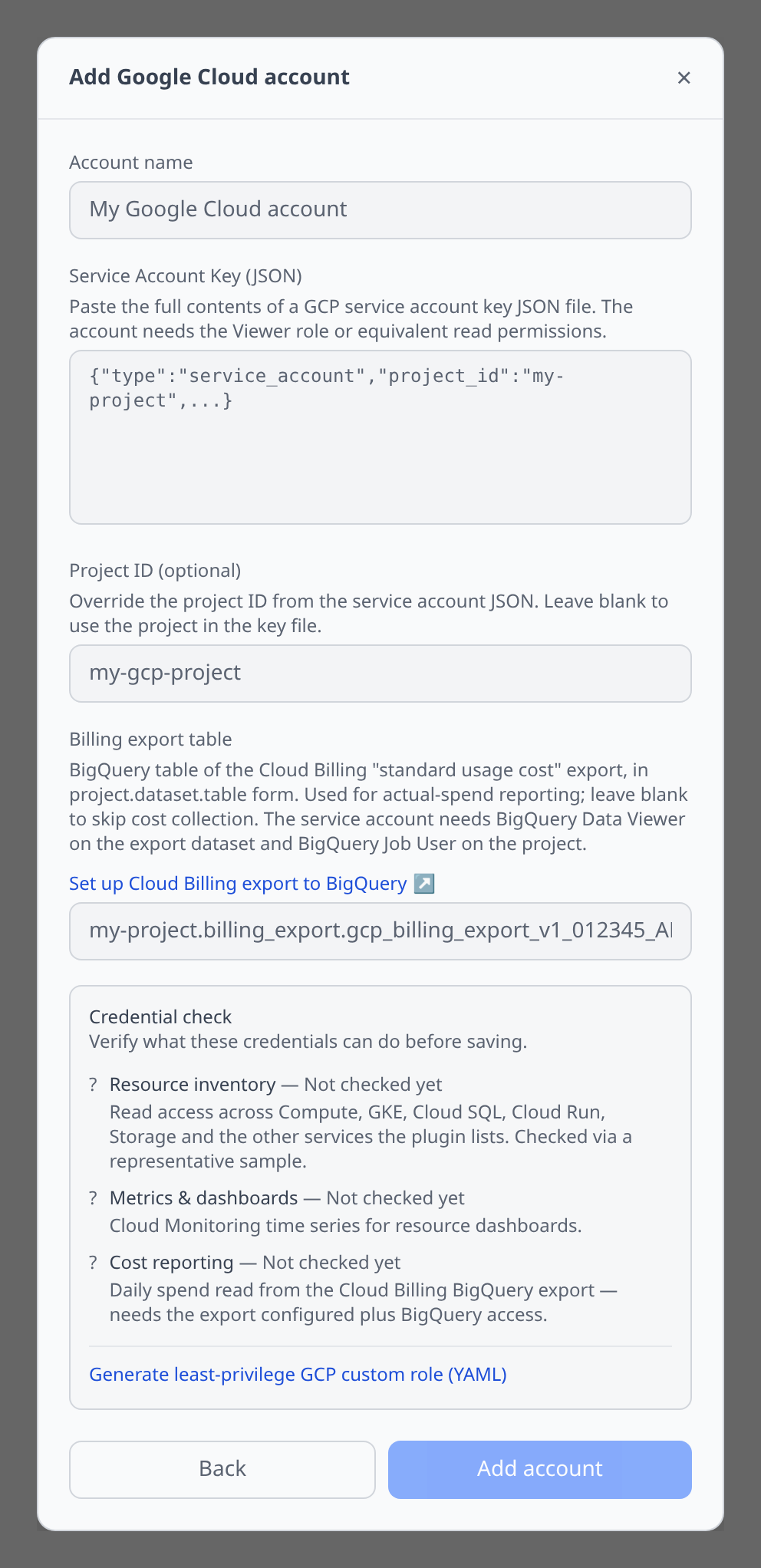
Credential preflight & least-privilege role
The add-account form (and Check credentials on the account page) tests the service account’s permissions with a single projects.testIamPermissions call — see Credential preflight:
- Resource inventory — a representative sample of the list permissions the plugin uses:
compute.instances.list,storage.buckets.list,container.clusters.list,cloudsql.instances.list,run.services.list,pubsub.topics.list,bigquery.datasets.get,secretmanager.secrets.list. - Metrics & dashboards —
monitoring.timeSeries.list. - Cost reporting —
bigquery.jobs.createandbigquery.tables.getData, plus the Billing export table field must be set; the checklist points at the billing export setup when it isn’t.
The generator emits a custom role definition in YAML — create it with gcloud iam roles create infrawrench --project=YOUR_PROJECT --file=role.yaml and grant it to the service account instead of the broad Viewer role. Cost reporting additionally needs the role (or BigQuery Data Viewer) on the billing export dataset itself.
Each service’s API has to be enabled
GCP ships every API switched off per project, and asking about a service that has never been turned on returns a permission error rather than an empty list. So a project using only Compute Engine will show sync errors for Cloud SQL, Spanner, Cloud Run, Secret Manager and the rest until those APIs are enabled — even though there is nothing there to list.
Infrawrench reports these as, for example:
The Cloud SQL Admin API (sqladmin.googleapis.com) is not enabled for project my-project. Enable it at https://console.cloud.google.com/apis/library/sqladmin.googleapis.com?project=my-project — it can take a few minutes to take effect.
Follow the link and click Enable for each service you want listed, or leave the rest disabled and ignore the warnings. Enabling an API you do not use costs nothing on its own.
Notable flows
- SSH terminal on Compute Engine VMs — infrawrench injects your chosen SSH key via the instance metadata API.
- SQL editor on Cloud SQL (Postgres, MySQL, SQL Server) — direct connection to the instance’s public IP using the embedded root password (see below).
- File browser on GCS buckets.
- Secret export to K8s for Cloud SQL and GCS (with service account key export as a secret).
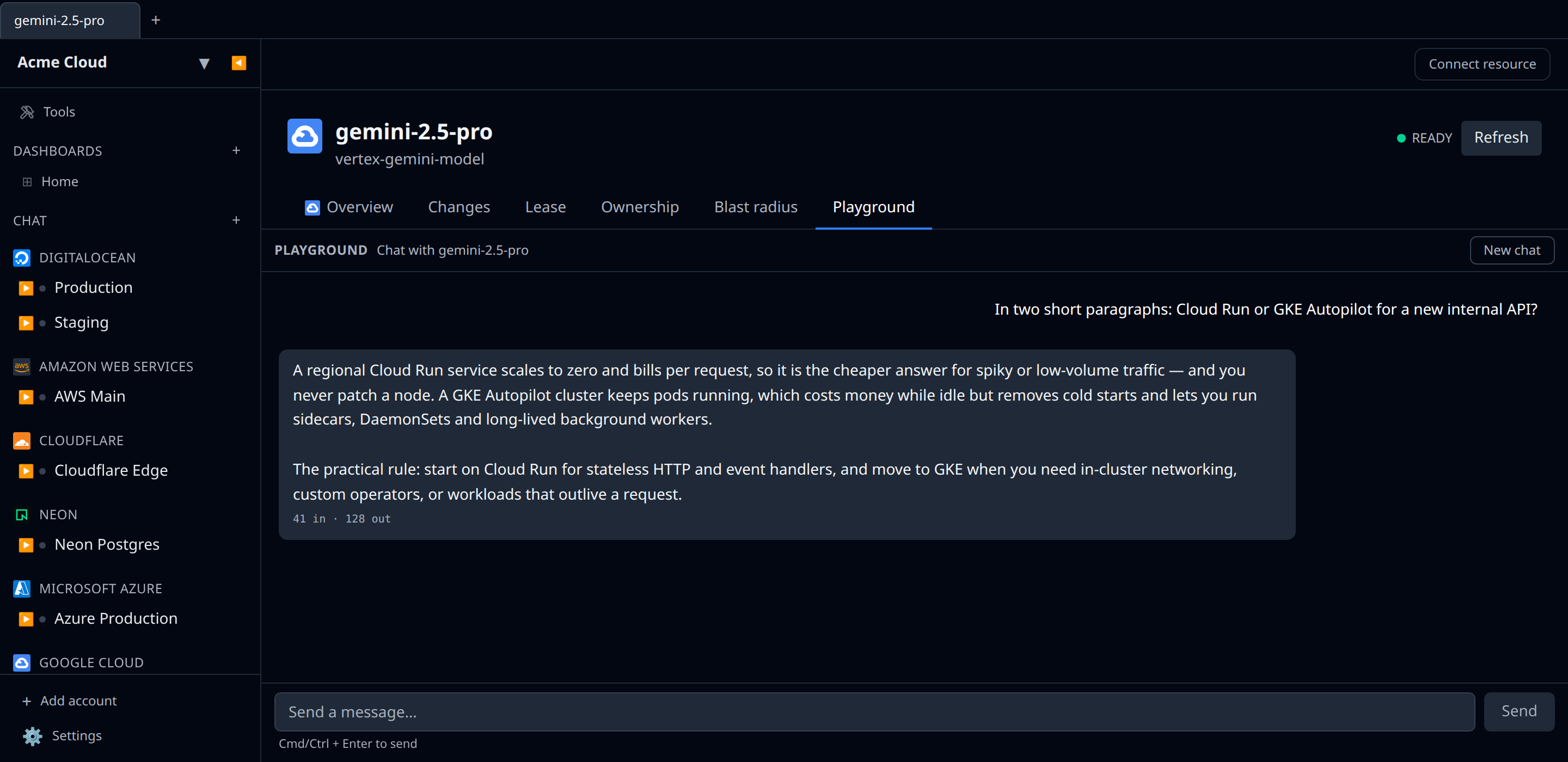
- Gemini Playground on Vertex AI Gemini models — open any model under AI/ML and use the Playground tab to chat with it. Responses stream token-by-token through Vertex AI’s OpenAI-compatible chat endpoint (
us-central1), authorized with the account’s service account. The whole conversation history is sent on each turn. The service account needs the Vertex AI User role (roles/aiplatform.user) and the Vertex AI API enabled on the project. - Send test messages to Pub/Sub topics and Cloud Tasks queues from a Publish / Create task tab on the detail page — see Send test messages. The service account needs
roles/pubsub.publisherandroles/cloudtasks.enqueuerrespectively.
Cloud SQL connectivity
The PostgreSQL / MySQL / SQL Server tabs on a Cloud SQL instance connect directly to the instance’s public IP using the root password Infrawrench stored at create time. To make this reachable from your machine you need to:
- Enable a public IP on the instance (Cloud SQL → this instance → Connections → Networking → Public IP). New instances created from Infrawrench have this enabled by default; the create modal exposes the toggle.
- Add your client IP (or
0.0.0.0/0if you accept the risk) to Authorized networks on the same screen so Cloud SQL accepts the inbound connection.
If the instance has no public IP, the tab renders a static guidance pane explaining the options (add public IP, run Infrawrench inside the VPC, or set up Cloud VPN / IAP) — Infrawrench doesn’t try to dial through a tunnel automatically.
Tips & limits
- Service account keys never expire on Google’s side, but rotating them is good hygiene — paste a new key any time.
- VM pricing is shown at creation time. It is an estimate — actual billing depends on sustained-use discounts and committed-use contracts.
- BigQuery results are paged; very large queries stream into the grid.
Cost graphs
GCP has no cost API, so cost graphs & budgets read your Cloud Billing BigQuery export. This is a one-time setup done by a billing admin, and there is no API or gcloud equivalent — every step is in the console.
1. Create the dataset the export writes into. BigQuery → Create dataset, in the project you want to bill the queries to. Any name works (billing_export is conventional). The export cannot be enabled without an existing dataset.
2. Turn on the export. Open Billing → Billing export (console.cloud.google.com/billing/export) and choose your Cloud Billing account if prompted, then:
- Open the BigQuery export tab.
- Click Enable standard Export. Each export type — FOCUS, standard, detailed — is enabled separately; Infrawrench reads the standard usage cost one.
- Pick your project from the Projects dropdown and your dataset from Dataset ID.
- Click Save. If the BigQuery API is not on yet, the page offers Enable BigQuery API first.
3. Copy the table name into Infrawrench. The export creates a table named gcp_billing_export_v1_<BILLING_ACCOUNT_ID>, with the billing account’s dashes turned into underscores. It appears a few hours after you save — not immediately — so come back once it exists. Paste the full project.dataset.table into the account’s Billing export table field:
my-project.billing_export.gcp_billing_export_v1_012345_ABCDEF_678901The service account needs roles/bigquery.jobUser on its project and roles/bigquery.dataViewer on the export dataset. Costs are net of credits, broken down by service, region, and project. Note the export only accumulates data from the day it is enabled — it is not retroactive, so cost graphs start there rather than covering the usual year of backfill.
Until all three steps are done, GCP cost graphs stay empty and the dashboard shows a banner saying so, linked straight to the billing export settings for this account’s project — see when collection fails.
Expect one more wait after that. The table is created before it holds anything, so a correctly configured export still returns no rows for its first day or two — Google backfills nothing and starts writing only once its billing pipeline catches up. During that window the account reports no error and the dashboard says there is nothing to collect yet rather than showing a failure. If it has been longer than that, confirm the export is still enabled and writing to the dataset you pasted — an export can create its table and then never deliver if it is turned off again.
Commitments
GCP accounts feed the Commitments section with committed-use discounts, listed daily via the Compute Engine commitments API (compute.commitments.list, included in roles/compute.viewer — no billing export required for this part).
Two things are specific to GCP here:
- A committed-use discount is denominated in resource units — vCPUs, GB of memory, local SSD — and Google’s API reports no money for it at all. The row shows the committed units and “price not reported”; a substituted dollar figure would be an invention.
- Because the commitment is in units rather than dollars, its utilization cannot be derived from cost rows. It reads “not measurable from spend” rather than a percentage — deliberately, since 0% and “unknown” must not look alike.