SSH terminal
Open a shell in any VM you can reach over SSH, without leaving the app.
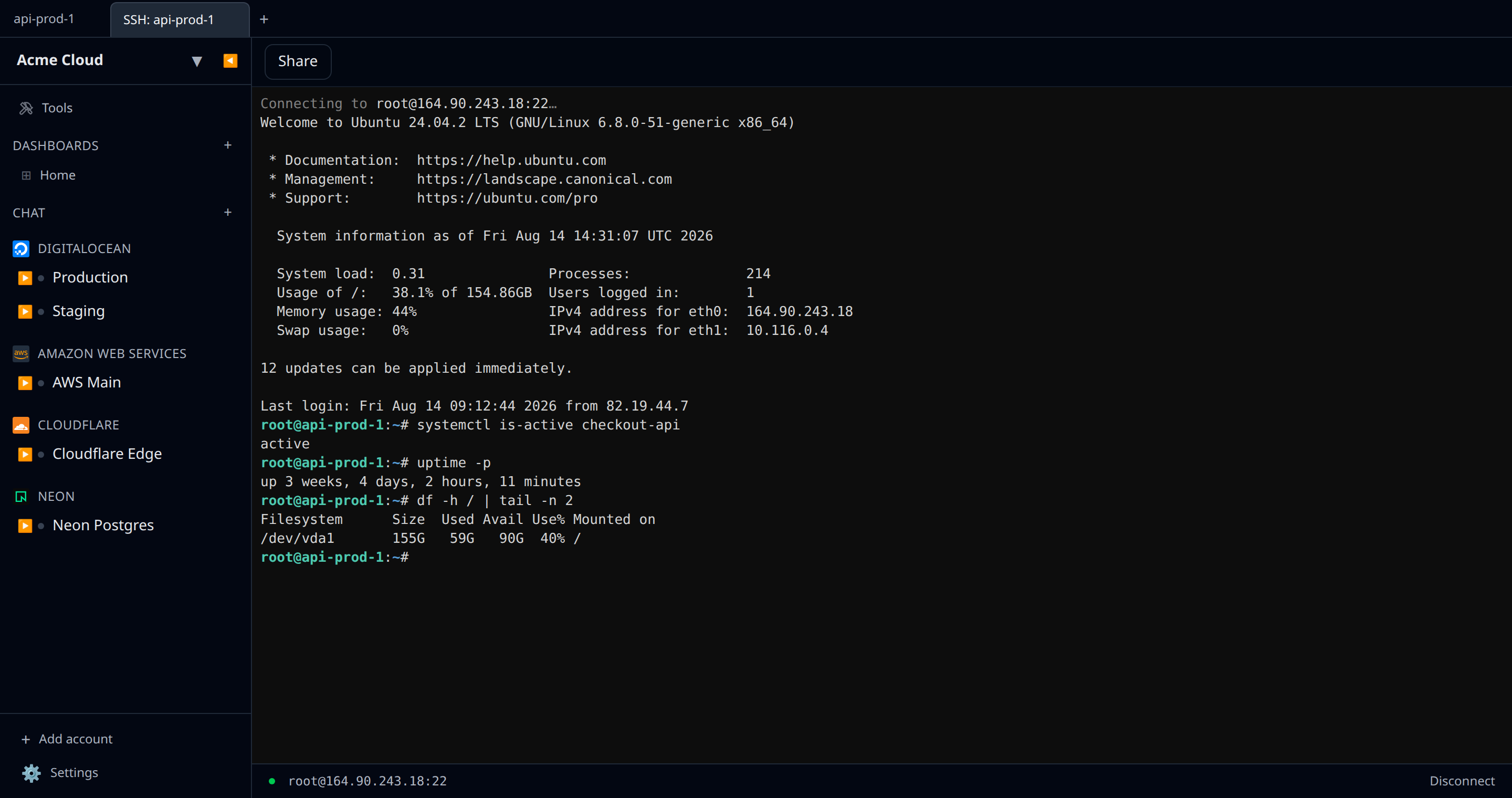
Any resource that represents a VM — EC2 instance, GCP instance, DigitalOcean Droplet, Hetzner server, Scaleway instance, Fly machine, generic SSH host — has an Open SSH tab button on its detail page. Clicking it opens a terminal (xterm.js) in a workspace tab of its own, titled SSH: <resource>, alongside the resource’s own tab in the strip. The terminal fills that tab; it is not a panel beside the resource view.
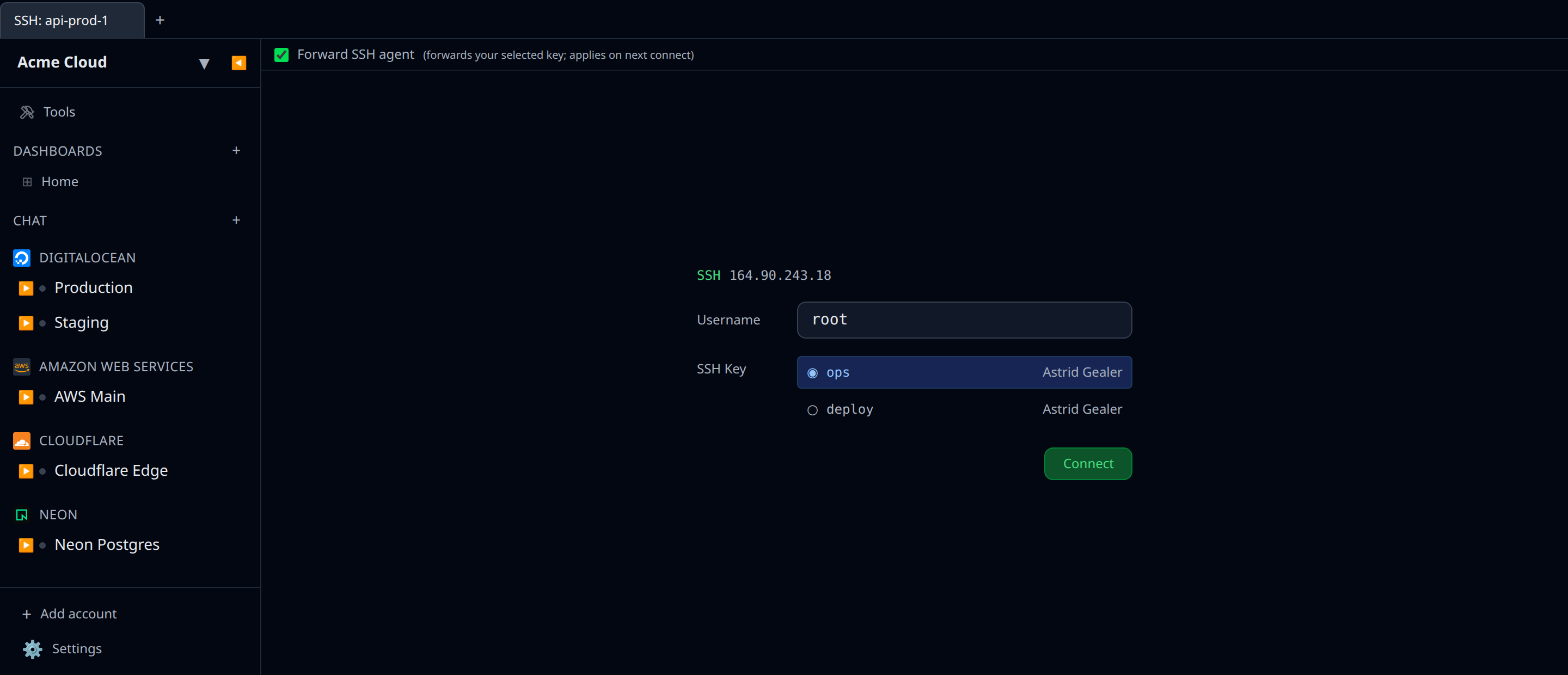
Picking a key
The first time you SSH to a host, you are prompted for a key.
Desktop: the picker lists keys found in ~/.ssh/ plus any keys you have saved in SSH keys. External SSH agents are also offered when running:
- 1Password (macOS / Linux / Windows) — appears as a
1Passwordrow when the 1Password SSH agent socket is reachable. Enable it in 1Password → Settings → Developer → Use the SSH agent. Selecting it routes authentication through 1Password; you’ll see a biometric / unlock prompt on the host machine when a key is used. - Pageant (Windows only) — appears when
pageant.exeis running. Selecting it uses whichever keys Pageant is currently holding.
Web: the picker lists keys saved in SSH keys. The web app cannot read files from your machine.
Once picked, the choice is remembered for that host.
Username
Infrawrench auto-derives the username from the key comment if possible (e.g. astrid@laptop → astrid). Override it in the connection form if needed.
Quality of life
- Copy on selection — anything you highlight with the mouse is sent to the system clipboard.
- Paste with Cmd + V on macOS, Ctrl + Shift + V on Linux/Windows. Plain Ctrl + V is left alone so readline’s quoted-insert keeps working.
- Resize by dragging — the remote pty resizes with the pane.
- Scrollback is kept per-session until you close the tab.
- Click a URL to open it in your browser. Both plain URLs printed by a program and OSC 8 hyperlinks work, so a device-code page from
gh auth loginor an authorization link from a setup script is one click rather than a copy-paste out of the terminal.
Only http and https links open. Terminal output is whatever the remote host chose to print, so a link is untrusted input — other schemes (javascript:, file:, data:) are refused and are not even drawn as links. Links always open in your real browser, never inside Infrawrench.
Screen readers
Terminals are readable by NVDA, JAWS, VoiceOver and Orca. There is nothing to turn on — screen reader support is enabled on every terminal in the product, in both the desktop and web apps, and there is no preference that can switch it off.
- Output is announced as it arrives. xterm.js keeps an accessibility tree beside the drawn screen, so what the remote host prints is read out rather than being trapped in a canvas.
- A burst of output is summarised, not read line by line. When a command floods the screen — a build log, a
tail -f, ayes— you hear the first lines and then “too much output” instead of an unbounded read. Stop the command and page back through the buffer to read it properly. - Keystrokes go to the shell. Each terminal is an ARIA application region, so NVDA and JAWS leave browse mode when you focus it and pass keys straight through to the remote host —
Ctrl + C, arrow keys and readline bindings all behave. Press the usual key to return to browse mode (NVDA:Insert + Space; JAWS:Insert + Z). - Each terminal says which one it is. Terminals are named by what they are connected to — “SSH terminal, deploy@web-1”, “Kubernetes exec terminal, pod api-7f9 in namespace prod, container api”, “k9s terminal, namespace prod” — so several open tabs are told apart without looking.
- Connection state is spoken. Connecting, connected, disconnected and host-key prompts are announced through a live region, because those messages are not part of the terminal buffer.
- Recorded sessions stay browsable. The session recording player is read-only, so it is left in browse mode and you can arrow through the replayed output as ordinary text.
None of this is visible on screen, which is the point — there is nothing to turn on and nothing to look at. The name is carried as the accessible name of the terminal itself: an SSH terminal announces SSH terminal, deploy@web-1 (or just SSH terminal, web-1 when no username is known), a pod shell announces Kubernetes exec terminal, pod api-7f9 in namespace prod, container api, and a recording player announces Session recording playback terminal. Connection changes — Connecting to deploy@web-1:22…, Connected, Connection closed, Connection error — are spoken from a hidden live region rather than written into the buffer.
Agent forwarding
Before you connect, the SSH tab shows a Forward SSH agent checkbox above the key picker, hinted “(forwards your selected key; applies on next connect)”. Once a session is open the checkbox is gone — which matches what it does, since the choice is read when the connection is made. When enabled, the same key you used to log in is exposed back to the remote host via the standard OpenSSH agent protocol. That means git clone git@github.com:... (or ssh user@another-host from the remote) authenticates with your local key — no need to copy private keys onto the server.
- Off by default. The setting is remembered per resource.
- Takes effect on the next connection; toggling does not kill an active session.
- No setup required. Infrawrench exposes your selected key through a built-in, in-process agent. You do not need to run
ssh-agent, configureSSH_AUTH_SOCK, or install Pageant. - If you authenticated with Pageant (Windows) or the 1Password SSH agent, that agent itself is forwarded instead — so all of the keys it holds become available on the remote. With 1Password, each remote sign-request still surfaces a biometric / unlock prompt on your local machine.
- Works in desktop local, desktop cloud, and web modes. In cloud/web mode the in-process agent runs on the Infrawrench Cloud server using the same encrypted key it already uses to open the SSH connection; the forwarded key never leaves the proxy.
- Cloud audit trail. In cloud/web mode, each forwarded sign-request the proxy performs on your behalf is recorded in the audit log. Look for action
ssh.agent.session_opened(one per session) andssh.agent.sign/ssh.agent.sign_failed(one per remote SSH challenge). Metadata includes the SSH key id, the target host, and the username used. - Security: a compromised remote can use the forwarded key against any other host that accepts it. Only enable for hosts you trust. The blast radius is one key — the one you logged in with — not your entire keyring.
Security notes
- Keys never leave your machine in desktop mode.
- In web mode, the server proxies the SSH connection; private keys are stored encrypted server-side and held in memory only for the duration of the session.
- Host-key pinning is on by default. The first connection to a host — and any connection where the host key has changed — shows a trust prompt with the presented fingerprint before continuing. This applies everywhere a terminal opens: the desktop app (native prompt), the web app, the mobile app, and desktop sessions proxied through the cloud. On mobile the prompt also covers the file browser — anything that dials SSH asks before it connects, and accepting reconnects for you. Web/cloud pins are stored per organization and can be reviewed under Settings → SSH host keys; desktop-local pins live on your machine.
Recording sessions
Sessions opened through the cloud are already proxied by our servers, which makes recording them cheap: turn it on and every one becomes a replayable asciinema cast — who connected, to what, and exactly what crossed the terminal. Off by default, retained on a window you set, and gated behind its own permission pair.
Sharing a session
A live cloud session can be shared with a colleague: they watch the same terminal in real time, and you can hand them the keyboard. Observers cannot type — their keystrokes are dropped by the server, not hidden by the UI — and joining requires the same permission opening the terminal does, so the invite link is a locator rather than access. See shared consoles.
Running one command on many hosts
A terminal is one shell on one box. To ask the same question of a whole fleet — which machines are on the old kernel, which are low on disk — use Fan-out SSH: pick the hosts, type one command, and identical output is collapsed so only the odd one out needs reading.
Not seeing the SSH button?
- The resource type may not be SSH-capable (e.g. managed databases — use the SQL editor instead).
- The instance may not expose a public IP. In that case, route it through a jump host — see Jumpbox routing.