Cost change alerts
Configured alerts that fire when spend on a chosen scope moves more than a chosen percent or amount versus the prior period, on a daily, weekly, or monthly cadence.
A change alert answers one question no other cost alert family does: “tell me when spend on this scope moves more than X% (or $Y) versus the prior period.” You pick the scope, the cadence, the direction, and the threshold; Infrawrench compares each period to the one before it and alerts when the movement clears the bar.
Six alert kinds, six different questions
Infrawrench has six ways to be told about spend, and they are deliberately not the same feature. The first three compare money against money; the last three read facts no spend total contains — a calendar, an obligation, a volume.
- Budgets watch an absolute monthly total you chose — “alert me when Production AWS passes $10,000 this month.” The number is fixed; the alert is about crossing it.
- Anomaly detection watches for statistical outliers against a learned baseline, with no configuration at all — “something spiked far outside its own history.” You don’t tell it what normal is; it learns.
- Change alerts (this page) watch a configured relative change on a scope you chose — “the api-gateway service moved more than 25% and more than $100 week over week.” You state what movement matters; nothing is learned and nothing is absolute.
- Commitment expiry watches a term end date. A reservation lapsing is a step change with no movement to notice until after it has happened.
- Idle commitments watch utilization of what you already bought. Nothing moves at all — the waste has been there since the purchase.
- Unit-cost regressions watch spend ÷ a business metric. The only one that stays quiet when spend doubles because volume tripled, and fires when spend is flat because volume halved.
A 15% creep across a whole account will never be a statistical outlier and may sit comfortably under a budget for months — a change alert is the tool that catches it deliberately. And a change alert firing on a scope whose cost-per-customer went down is the case the last three exist to keep in proportion; the comparison table lines all six up side by side.
Windows: what is compared to what
All windows are made of complete UTC days — the current, still-accruing day never counts, because a partial day always reads as a drop. The comparisons are like-for-like on purpose:
- Daily — one complete day vs the same weekday one week earlier. Yesterday’s Tuesday is compared to last Tuesday, never to Monday, so ordinary weekday/weekend seasonality doesn’t read as a change.
- Weekly — the last 7 complete days vs the 7 complete days before them.
- Monthly — month-to-date (the current month’s complete days) vs the same number of days at the start of the prior month, clamped to that month’s length (30 days of March compare against all 28 of February). It is never month-to-date vs the full prior month — that comparison reads “down 70%” on the 9th of every month and means nothing.
Provider billing data is restated for a few days after the fact, so windows are re-evaluated as late data lands. Each cadence period — a day, a calendar week, a month — fires at most once per watched group and currency, however many times it is re-examined.
Thresholds: percent, amount, or both
An alert carries a percent threshold, an absolute amount threshold, or both:
- Percent — the movement must be at least this percent of the prior window’s spend.
- Amount — the movement must be at least this many dollars (in the compared currency).
- Both set — the movement must clear both bars before the alert fires. This is the recommended shape: percent alone pages someone about a 50% jump on $2 of spend, and amount alone pages about a 0.4% wobble on a very large bill.
Direction is part of the alert: increases only, decreases only, or either way.
Scope and per-group watching
The scope is the same filter vocabulary budgets and cost graphs use — provider, account, service, region, resource, tag, charge type, commitment. An empty scope is all spend.
An alert can watch the scope’s one total, or watch each group of a dimension separately — “each service”, “each account”, “each value of the team tag.” A grouped alert compares every group against its own prior window, and each offending group fires its own event, so one alert covers “any service that moves” without naming the services up front.
Two group situations are handled explicitly rather than left to arithmetic:
- New spend — a group present now with no spend at all in the prior window. The percent
change is infinite, so no percentage is shown (events say
new), any percent threshold counts as cleared, and the amount threshold still applies — which is exactly why a grouped percent-only alert benefits from an amount floor. - Vanished spend — a group with prior spend and none now. That is a −100% decrease of its whole prior amount, visible to alerts that watch decreases.
Currencies
Comparison is per currency — amounts in different currencies are never summed or compared against each other. If your organization has a display currency and stated exchange rates, spend is converted into it first, so a mixed-currency scope compares one number. A currency the organization holds no rate for is compared in its own currency — it is never dropped from evaluation.
Managing alerts
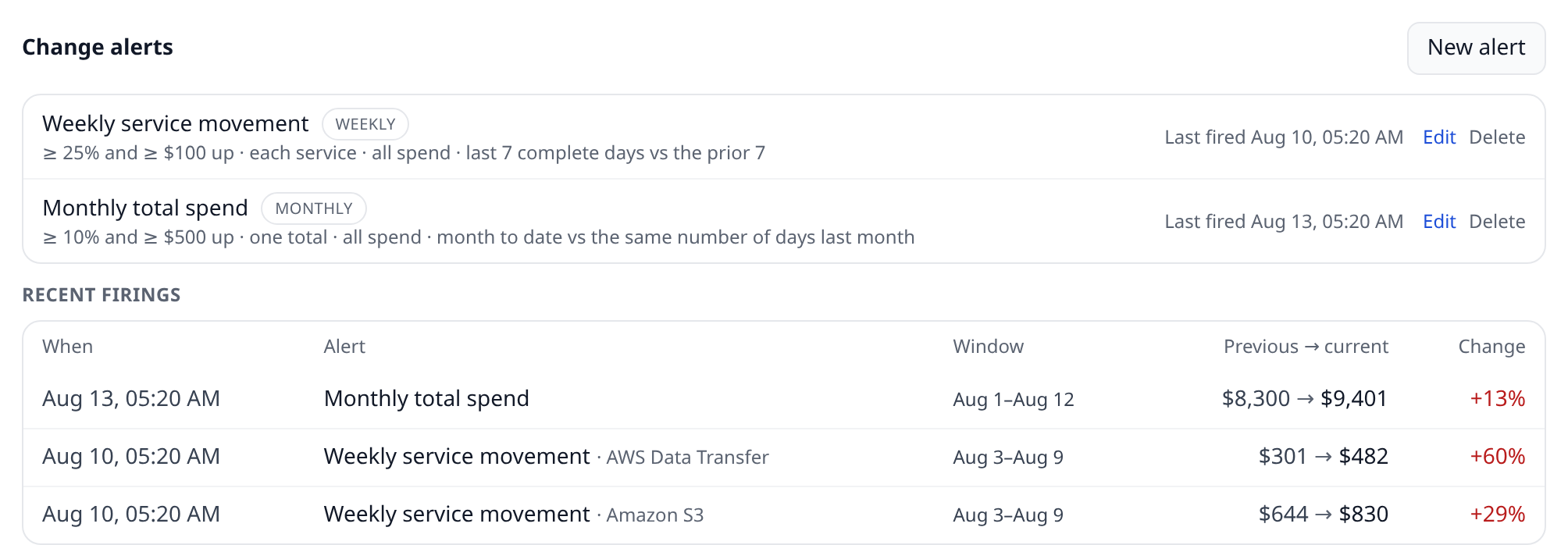
Change alerts live on the Costs panel, next to the anomalies section, on both web and desktop. The list shows each alert’s cadence, threshold, scope, and when it last fired; recent firings are listed underneath with the previous → current amounts and the change.
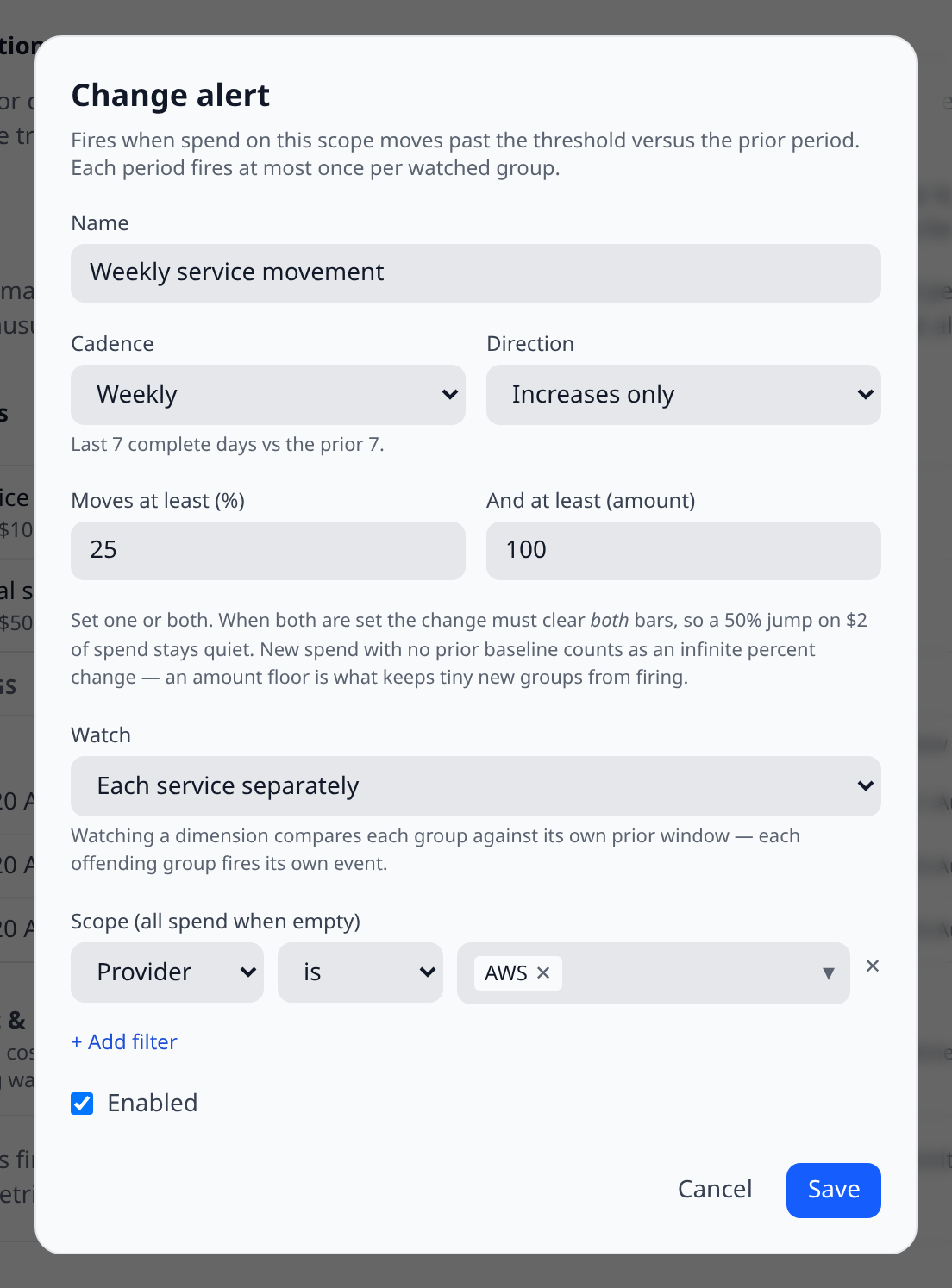
Creating or editing an alert opens a modal with the cadence, direction, thresholds, group-by picker, and the same filter rows the budget editor uses.
Reads require the costs:read permission; creating, editing, and deleting require
costs:write. Mutations are recorded in the audit log.
Notifications
Fired events flow through alert routing as their own trigger kind, Cost changes — routing rules, quiet hours, and escalation apply to them exactly as they do to budgets and anomalies, and a rule can match on the size of the movement (“cost changes over $500 → #incidents”). Push notifications deep-link to the Costs tab in the mobile app, where the alerts and their recent firings are listed read-only.
CLI and API
The CLI lists alerts and recent firings:
infrawrench costs --alerts            # alerts + recent firings, as tables
infrawrench costs --alerts --json     # the same, as JSON
infrawrench costs --alerts --limit 50 # more firings
The HTTP API exposes the same surface under /api/org/:orgId/cost-alerts (CRUD plus
/cost-alerts/events), and the MCP/chat tools list_cost_alerts,
list_cost_alert_events, create_cost_alert, and delete_cost_alert manage them from an
agent. See the API reference.