SSH tunnels
Reach a database or service that only listens on a bastion's loopback, by connecting to it through SSH.
Many production databases are not reachable from the public internet — they listen on the loopback interface of a host you can SSH into, and nothing else. Infrawrench can forward a port through that host so the SQL editor, KV console and the rest of the app can talk to the service as if it were local.
You do not create a tunnel as a thing in its own right. You connect a service through a host, and what you get back is an ordinary account in the sidebar that happens to reach its database over SSH.
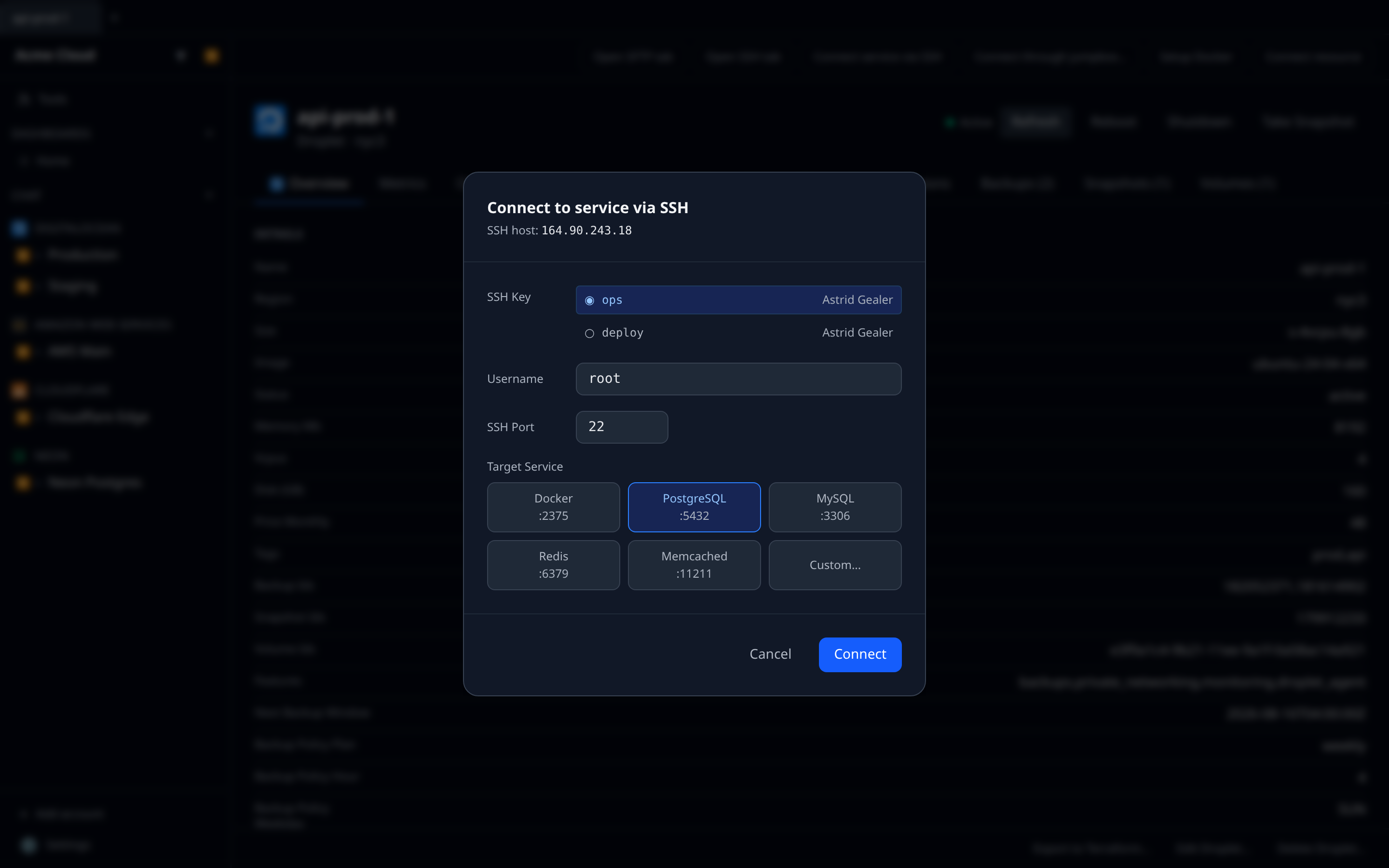
Connecting a service
- Open the detail page of the host you want to tunnel through — any SSH-capable resource: an EC2 instance, a DO Droplet, a Hetzner server, a generic SSH host.
- Click Connect service via SSH.
- Pick an SSH Key. On web these are the keys saved in SSH keys; on desktop the picker also offers keys from
~/.ssh, the 1Password agent and Pageant. - Check the Username (it is derived from the key and defaults to
root) and the SSH Port (22). - Choose a Target Service from the preset grid — Docker
2375, PostgreSQL5432, MySQL3306, Redis6379, Memcached11211, or Custom…. Only Custom… shows a Remote Port field. - Click Connect.
Infrawrench opens the tunnel to check it works before saving anything. If it connects, you get a new account named after what you connected — “PostgreSQL on 10.0.1.7” — and you land on its page. If the host key is new or has changed, you are asked to trust it first.
What the tunnel actually reaches
The far end of the tunnel is always 127.0.0.1 on the host you connected through. There is no target-host field, because the case this solves is a service bound to the bastion’s own loopback. To reach a service on a different private machine, connect to that machine instead — jumpbox routing is how you get there when it has no public address.
There is no local-port field either. The local port is allocated automatically at connect time, and the account’s stored connection string is rewritten to point at it whenever something opens a connection. That means the tunnel is invisible in use: open the SQL editor on the account and it works.
Desktop vs web
- Desktop — the tunnel runs inside the app on your machine, so a local
psqlcould reach it too. Quitting the app closes every tunnel. - Web — the tunnel runs on Infrawrench’s server, so its loopback is the server’s. That makes it usable for in-app features (SQL editor, KV console, workflows) and not for tools on your laptop.
Desktop has two extra ways in: Connect to service via SSH… on a resource’s right-click menu in the sidebar, and dragging a Docker, Postgres, MySQL, Redis or Memcached account onto an SSH-capable resource, which opens the same modal with that preset already chosen.
Closing one
There is no stop button. A tunnel is reopened on demand and otherwise left alone; deleting the account it belongs to is what retires it for good.
Troubleshooting
- Permission denied (publickey) — wrong key for the host. Reconnect and pick another in SSH keys.
- Connection refused to target — nothing is listening on that port on the host’s loopback. SSH in and check with
ss -ltnbefore trying again. - The key isn’t in the list — on web only keys generated in Infrawrench can be used, because an imported key leaves the private half with you. See SSH keys.