Install infrawrench
Pick the desktop app or the web app and get to an empty workspace.
Infrawrench ships in three forms. Desktop and web share the same plugins, resource views, and features — the difference is where your credentials live and how you sign in; mobile is a cloud companion with a deliberately smaller read-and-respond feature set. For the longer comparison, see Desktop, web, and mobile.
- Desktop app — local-first. Credentials live in an encrypted SQLite database on your machine and nothing leaves it unless you opt in to cloud sync. No sign-in required.
- Web app — hosted, multi-user. Sign in with email or SSO, invite a team, share an organization.
- Mobile app — iOS/Android companion to the web app’s cloud org: dashboards, resource browsing, chat, terminals, and push notifications on the go.
You can start with either and link them later.
Desktop app
Download
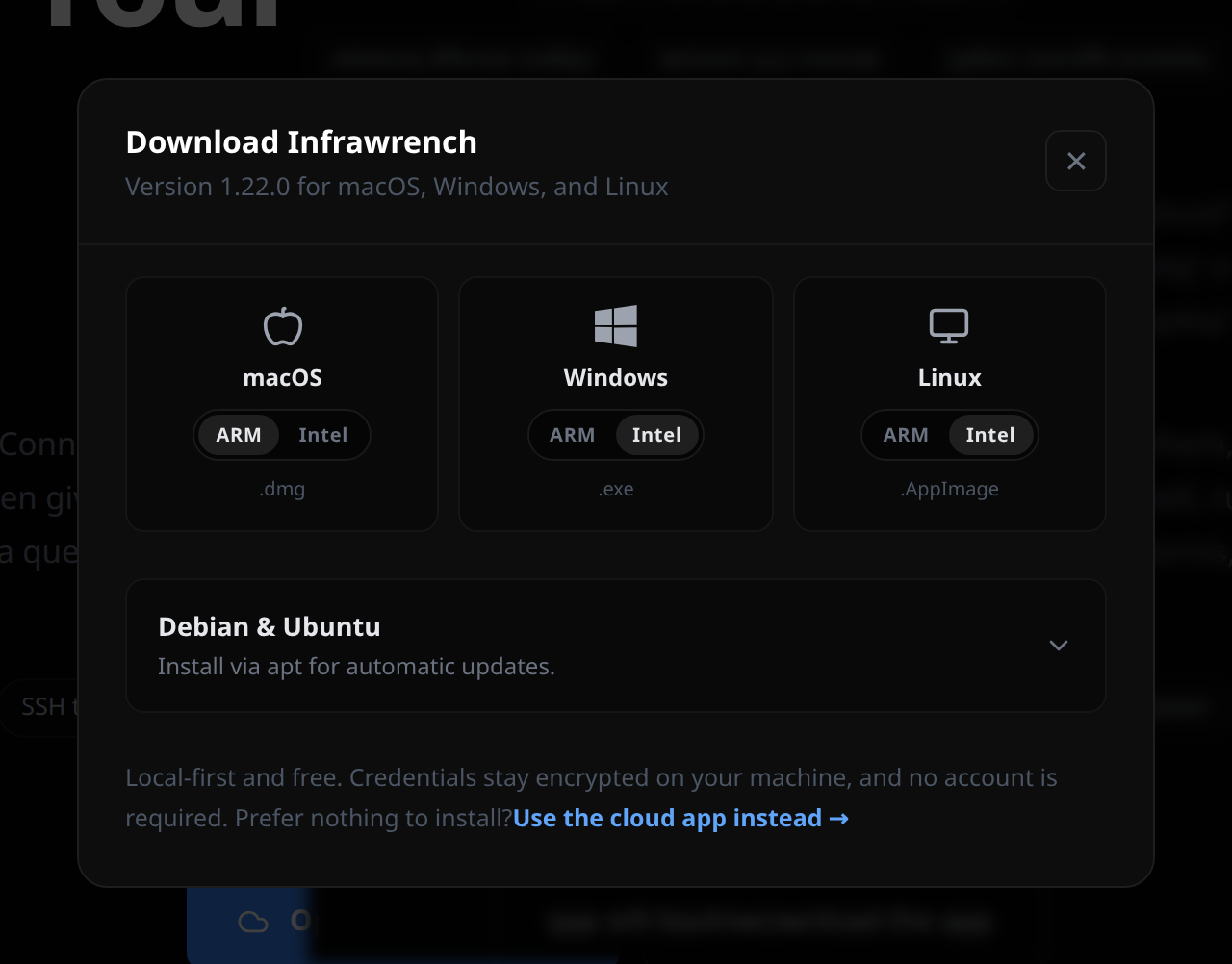
Download the build for your platform:
- macOS — universal
.dmg - Windows —
.msi - Linux —
.AppImageor.deb
Credentials are stored in a local SQLite database, encrypted with AES-256-GCM using a key held in your OS keychain.
First run
On first launch you see a welcome screen that explains what signing in to Infrawrench Cloud adds — syncing to web and mobile, team organizations, cloud-side workflows and deployments, budgets and alerts — and offers two ways in:
- Sign in to Infrawrench Cloud — opens your browser to sign in. Once you’re back, pick the organization you want to start in (or Use locally for now). If you’re not in an organization yet, the app points you to the web to create one, then picks it up when you return.
- Continue without an account — skip straight to a fully local workspace. Nothing is uploaded, and you can sign in later from the sidebar.
Either way, the next step is the same: click Add account to connect your first cloud or service — see Add your first account.
SSH agent integration
- macOS / Linux — keys in
~/.ssh/are auto-detected for the SSH terminal. - Windows — Pageant is supported if running. Keys added to Pageant show up in the key picker.
Updating
The desktop app checks for updates on launch and every four hours, and downloads them in the background. Once an update is unpacked and ready to apply, Infrawrench asks whether you want to restart:
- Restart now — quits and relaunches into the new version.
- Later — the update is applied the next time you quit Infrawrench.
The prompt only appears once restarting is guaranteed to work, so there is a gap between the download finishing and the prompt showing up. If preparing an update fails — most often because the disk is full — Infrawrench tells you what went wrong instead of failing quietly, and retries on its next check.
Web app
Create an account
- Go to app.infrawrench.com. There is no separate sign-up page and no login screen in the app — arriving signed out hands you straight to Infrawrench’s identity provider, WorkOS AuthKit, on its own domain. That hosted page is where you choose email, Google, or Microsoft.
- Sign in or create the account there. You come back to Infrawrench once it succeeds.
- On first sign-in you are prompted to Create your organization. Pick a name you can live with — it shows up in the workspace switcher.
- After creating it you Choose your plan: Free ($0) or Pro ($20 / seat / month). Continue with Free is fine — you can upgrade later from Settings → Billing. See Billing and plans.
Finish sign-up in the browser you started it in. Verifying your email can take you through your inbox and back, and if that round trip lands in a different browser — a link opened inside a mail app, say — you land on a Sign-in could not be completed page and have to start again. Taking your time is fine; switching browsers mid-flow is not.
Your first landing
After sign-up you land on an empty dashboard with a sidebar that has no accounts yet. Two things to do next:
- Add an account — connect a cloud or service so infrawrench can list your resources. Start with Add your first account.
- Invite your team (optional) — see Organizations and invites.
Free tier vs paid
The free tier includes:
- 1 user
- Up to 3 connected accounts
- No audit log, no API keys
Paid ($20 / seat / month) removes those caps and unlocks the audit log and API keys. See Billing and plans.
Using both together
The two apps can be linked so the same workspace is available in both places. Credentials stay encrypted at rest on either side.
- Desktop → web — open Settings → Cloud sync in the desktop app, click Link account, sign in via the browser (OAuth with PKCE, no shared secret), and pick the organization to sync into.
- Web → desktop — install the desktop app, sign into the same organization from Settings → Cloud sync, and your resources pull down so you can work offline. Both stay in sync when you reconnect.
You can unlink at any time; the desktop copy is not deleted.