DNS records
Browse a zone's DNS records as a table and point A/AAAA/CNAME records at other resources.
DNS records show up as a Cloudflare-dashboard-style table on a zone’s detail page, and creating an A, AAAA, or CNAME record lets you point it at an existing resource instead of pasting an IP or hostname by hand.
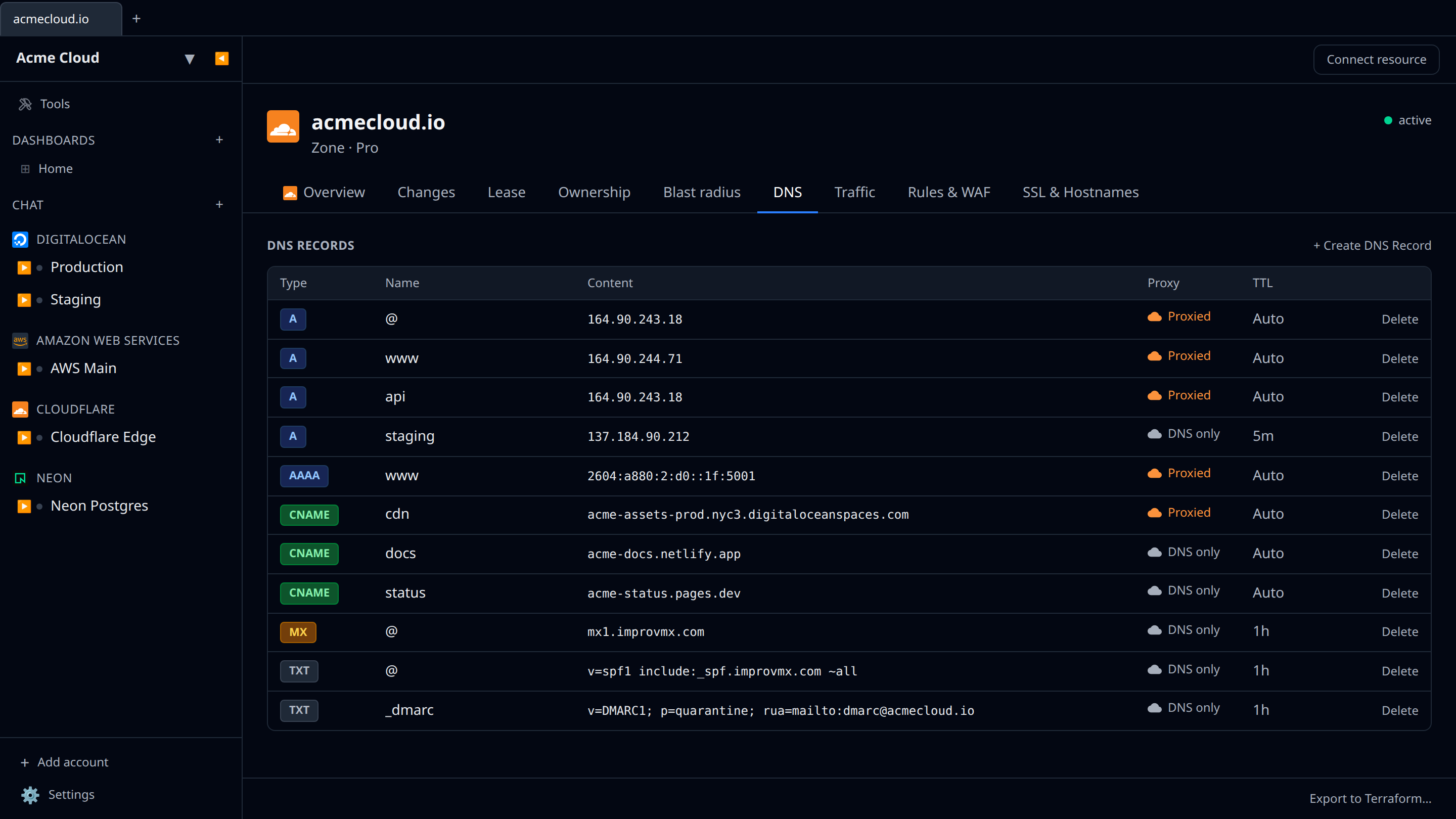
The records table
Open a DNS zone (Cloudflare zone, DigitalOcean domain, Route 53 hosted zone, Cloud DNS zone, Netlify DNS zone) and the DNS Records section renders as a table with columns for Type, Name, Content, Proxy, and TTL:
- The Type column is a colored badge (A, AAAA, CNAME, MX, TXT, …).
- The Name column shows the short record name (
www) rather than the full FQDN; the zone apex shows as@. - The Proxy column shows an orange cloud for proxied records and a grey cloud for DNS-only (Cloudflare).
- The first cell of each row is a button (Edit name, or Open name for tables that navigate). Activating it opens an inline edit form right on the zone page (no navigation); the trailing Delete button removes the record. Both are ordinary tab stops.
- + Create DNS Record opens the create form.
Pointing a record at a resource
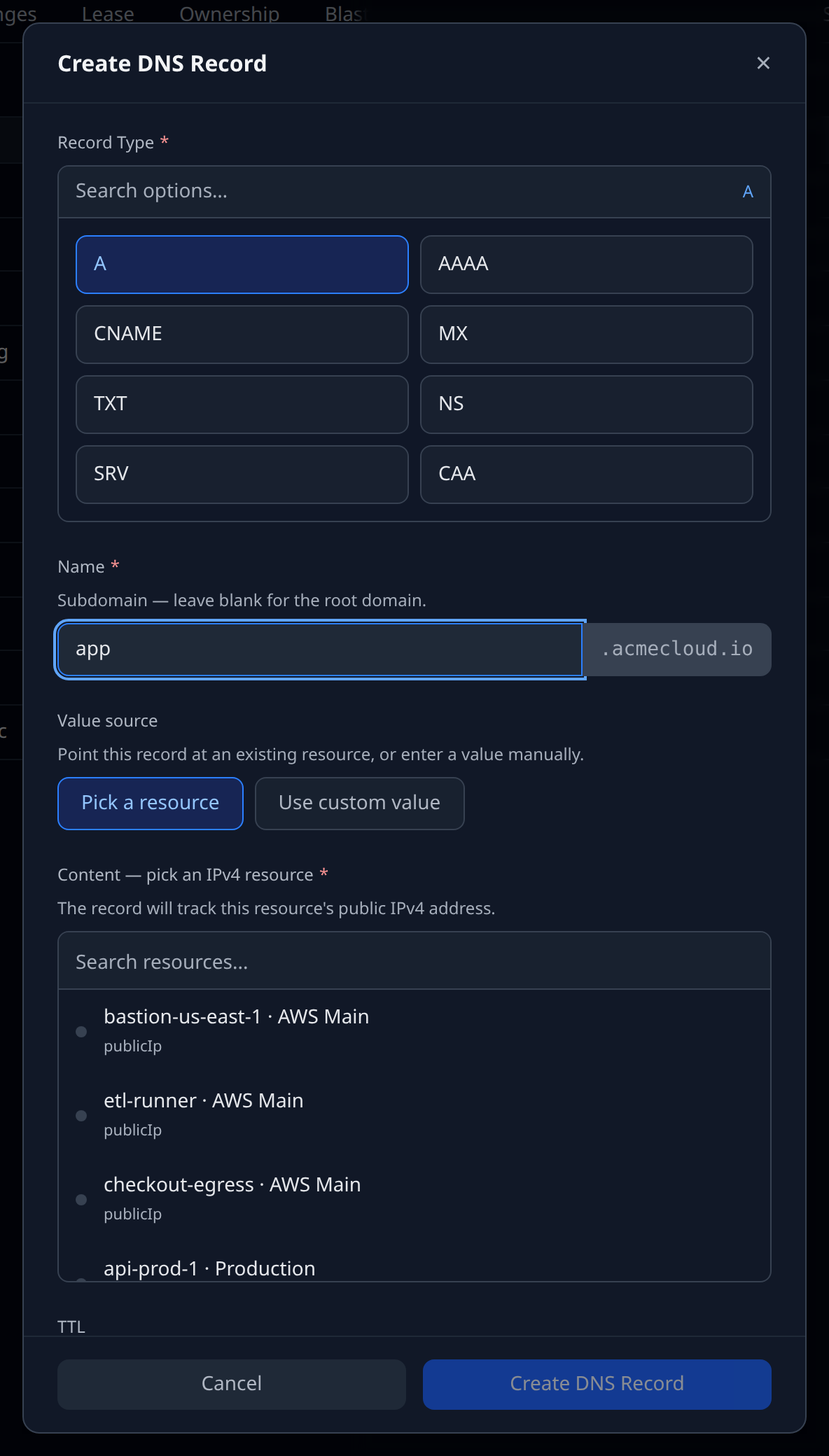
When you create an A, AAAA, or CNAME record, the value field defaults to a resource picker:
- A records list resources that expose a public IPv4 (EC2 instances, Elastic IPs, droplets, Azure VMs/public IPs, Hetzner servers/floating IPs, Scaleway instances, GCE instances, GCP forwarding rules).
- AAAA records list resources that expose a public IPv6 (droplets, Hetzner servers, Fly machines).
- CNAME records list resources that expose a hostname (ALBs, RDS/DocumentDB endpoints, EC2 public DNS, Spaces buckets, Azure FQDNs).
The picker searches every account in your org whose provider can produce that value — so a Cloudflare A record can point at an AWS Elastic IP, a DigitalOcean droplet, and so on. Each option is labelled with the account it came from.
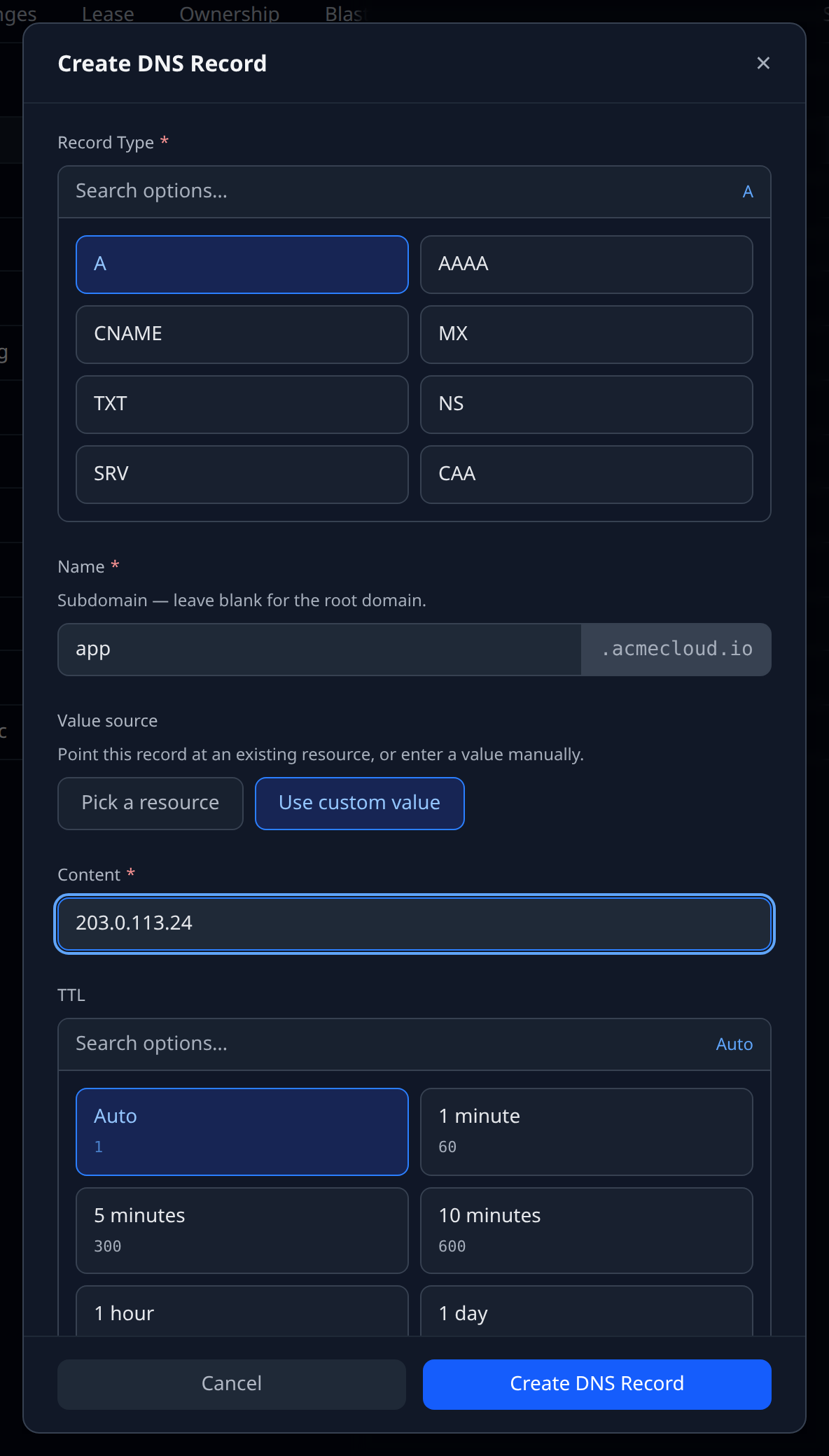
Prefer to type a value? Switch Value source to Use custom value and enter it directly. Record types that aren’t A/AAAA/CNAME (MX, TXT, SRV, …) are always a plain text field.
Live tracking
Picking a resource stores a live output reference, not just a snapshot. When the source resource’s address changes — a server is rebuilt and gets a new IP, a load balancer’s hostname changes — the record is updated at the provider on the next sync cycle so it keeps pointing at the right place.
Seeing every zone at once
This page is about one zone’s records. For every zone and record across every provider in a single table — with records pointing at provider names nothing in the connected workspace claims flagged as potential takeover risks — see Domains & dangling DNS.
Live tracking is supported on Cloudflare, DigitalOcean, AWS Route 53, and Google Cloud DNS. Netlify DNS records are immutable at the provider, so a Netlify record captures the value at creation time but does not auto-update.