Organizations and invites
Share a workspace with teammates.
The desktop app in local-only mode is single-user by design. Signed in to a cloud organization, the desktop app manages the same team from its Settings tab.
An organization is a shared workspace. Accounts, resources, dashboards, SSH keys, API keys, and audit logs all live under exactly one organization. You can belong to many organizations and switch between them from the workspace picker in the top-left.
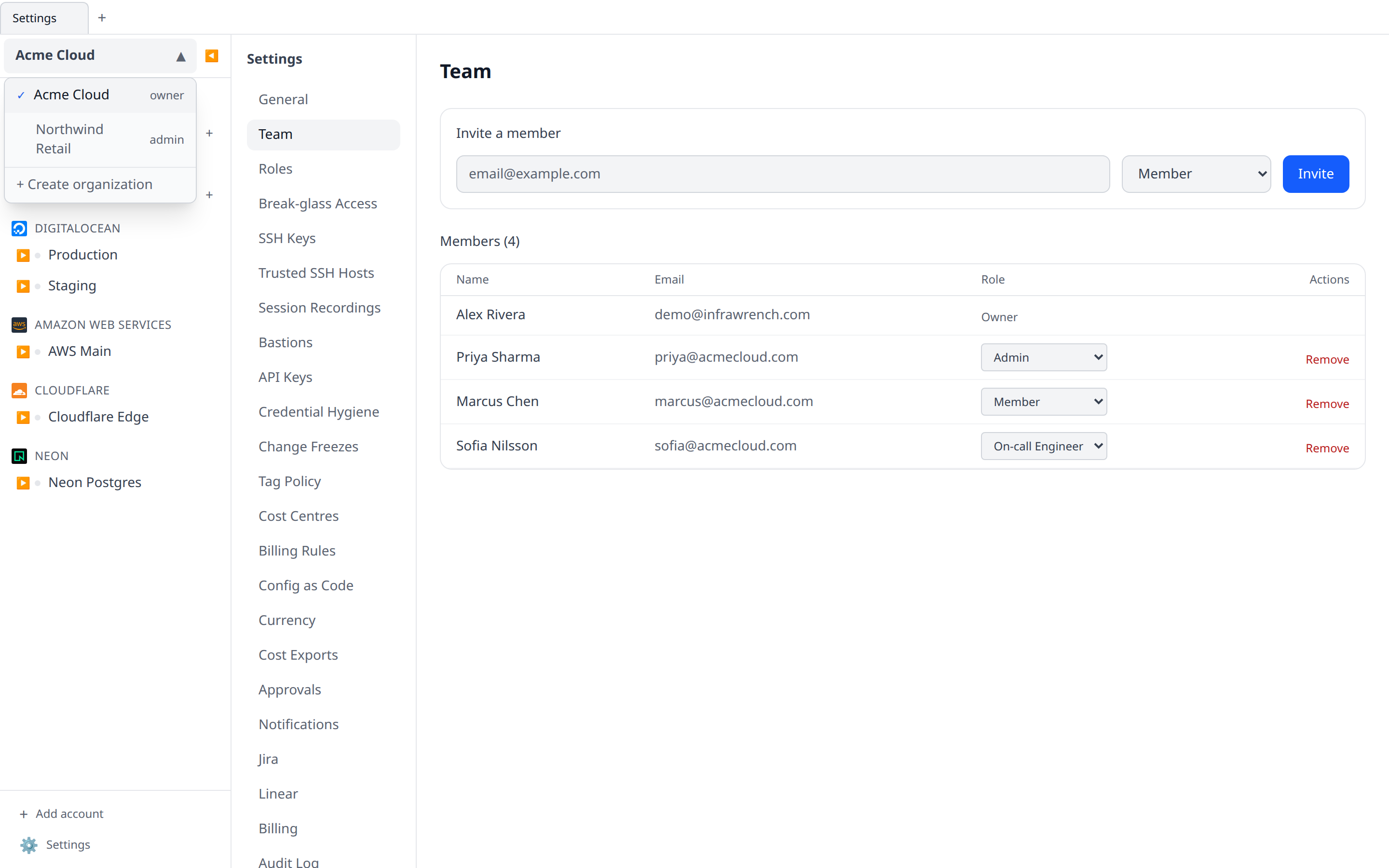
Invite a teammate
- Go to Settings → Team.
- Click Invite member.
- Enter an email address, pick a role (see Roles and permissions).
- Send.
The invitee gets an email with a link. They sign up (or sign in), and the org appears in their workspace picker.
Inviting teammates requires the paid plan — the free plan is a single user, and the invite form will prompt you to upgrade.
You can only invite someone into a role you could assign an existing member: the role’s permissions must be a subset of your own, and only an owner can invite another owner. If the role picker refuses a choice, ask an owner to send that invite.
On the paid plan, every member and pending invite occupies a seat — counting both your monthly seats and any prepaid capacity slots. If all seats are taken, you’ll be asked to confirm adding one (billed pro-rata) before the invite is sent — this needs billing permission, so a member who can invite but can’t manage billing will be asked to get a billing admin to add the seat first.
If your capacity is entirely prepaid slots there is no monthly seat to add, so the prompt instead points you at Settings → Billing to buy another slot.
Pending invitations
Pending invites are listed under Pending invitations in Settings → Team, with the invitee’s email, the role they were offered, and when the invite expires. The only action is Revoke, and it is shown only to members who can invite — there is no resend, so an invite that has lapsed is revoked and sent again. Invites expire after 7 days.
Removing a member
Owners can remove members from Settings → Team. Resources and accounts they created stay with the organization.
Leaving an org
From the workspace picker, switch to the org, then Settings → Leave organization. You cannot leave if you are the last owner — promote someone else first.
Renaming
Owners can rename the organization in Settings → Organization. URLs do not change; the name is for display only.