Slack alerts and commands
Route alerts to Slack channels, approve or deny workflow and agent approvals with message buttons, and query costs and resource status with /infrawrench.
Infrawrench Cloud can post alerts into Slack. It sits alongside Twilio SMS/voice, mobile push, and Microsoft Teams as another delivery channel — same triggers, same thresholds — and it is usually the one people actually read during working hours.
Slack is also the one two-way transport: approval requests arrive with working Approve and Deny buttons, and a /infrawrench slash command answers cost and resource-status questions without leaving the channel. Both halves require linking your Slack account first.
Cloud only. Alerts are dispatched by the cloud’s background poller, cost evaluation, and workflow runner. The desktop app has no Slack connection; a workflow page there becomes a native OS notification instead.
Connecting a workspace
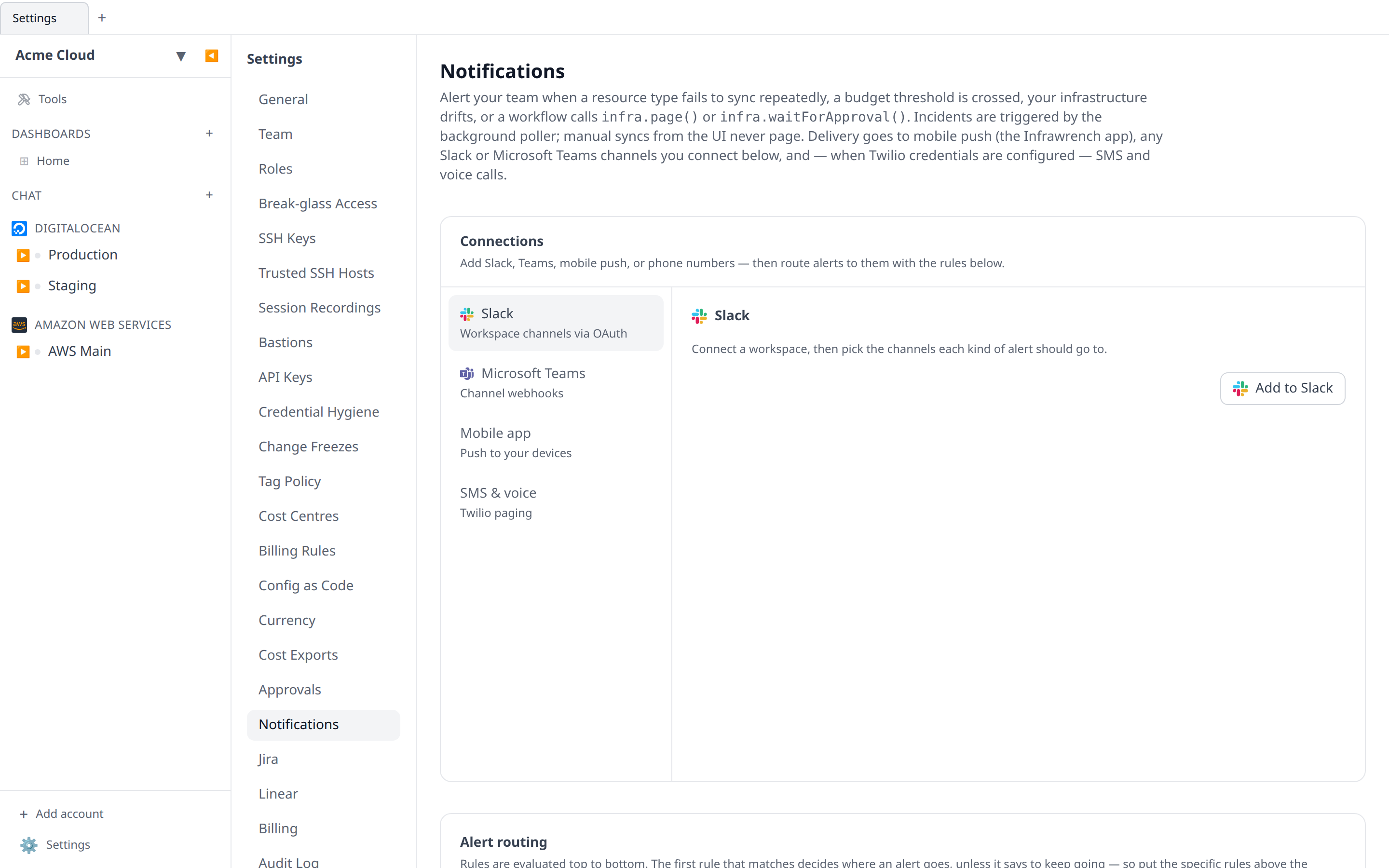
Go to Settings → Notifications and press Add to Slack. That opens Slack’s own approval screen, where you choose the workspace and confirm the permissions. When you approve, Slack sends you back to Infrawrench and the workspace shows as connected.
Infrawrench asks for five scopes and nothing else:
| Scope | Why |
|---|---|
chat:write | Post the alert messages |
chat:write.public | Post to a public channel without having to be invited to it |
channels:read | List public channels so you can pick one from a menu |
groups:read | List private channels the app has been invited to |
commands | Register the /infrawrench slash command |
It never reads message history and never posts as you — messages come from the Infrawrench app itself.
Self-hosting? Slack requires an app registered against your own deployment, so SLACK_CLIENT_ID and SLACK_CLIENT_SECRET must be set on the server, and the app’s redirect URL must be https://<your-host>/api/slack/oauth/callback. Until they are, the Slack section says Slack isn’t set up on this server and the button is hidden. The two-way half additionally needs SLACK_SIGNING_SECRET set, a slash command named /infrawrench pointed at https://<your-host>/api/slack/commands, and Interactivity enabled with request URL https://<your-host>/api/slack/interactions — without the secret, alerts still send but every inbound Slack request is refused.
Choosing channels
Press Add a channel and pick from the list — it’s fetched live from your workspace, so there are no channel IDs to look up. Add as many as you like.
Adding a channel makes it a destination; which alerts reach it is decided by your alert routing rules. That is what lets a #finance channel take budget crossings without also getting every sync failure — and, unlike the per-channel checkboxes this replaced, what lets it take only the crossings over $500 on the production account.
Until you write a rule, an organization routes everything except resource drift to every connected channel, so a channel you add today starts receiving alerts immediately. Drift is the exception because it is a continuous feed rather than an exceptional event; what counts as drift, and how often a digest may go out, is configured once for the whole organization in Settings → Notifications → Resource drift alerts.
Unlike the mobile push toggles, which each member sets for themselves, routing is org-wide — it takes the Organization settings permission to change.
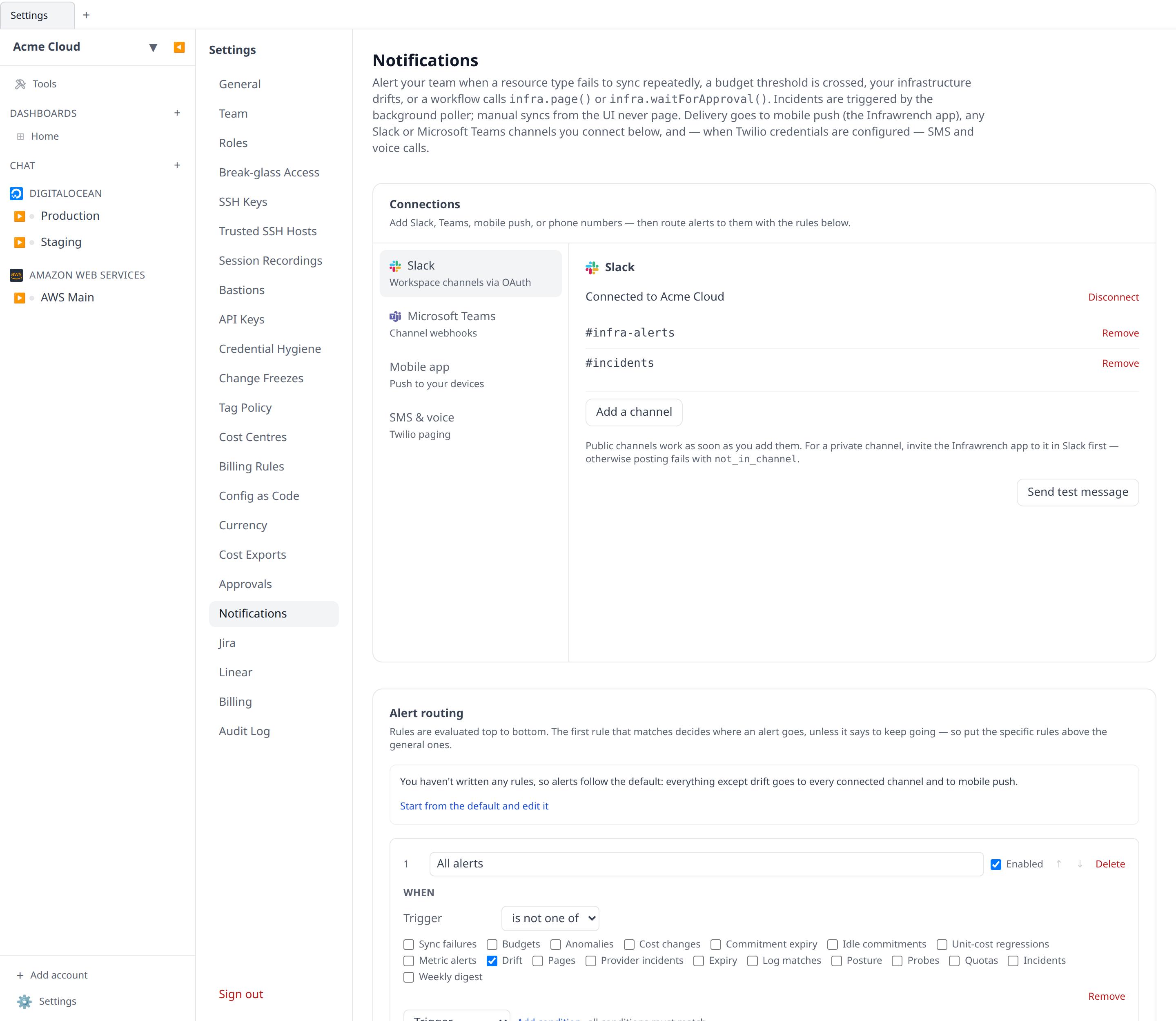
Private channels need an invite. chat:write.public covers public channels, but Slack won’t let any app post into a private channel it isn’t a member of. Invite the Infrawrench app to the channel first (/invite @Infrawrench in Slack), then add it here. If you skip that step, delivery fails with not_in_channel — the Send test message button surfaces that error verbatim so you can tell it apart from a genuine outage.
What the messages look like
Each alert is a short block: the headline in bold, the alert text below it, and — for budget alerts, drift digests, pages and approval requests — a View in Infrawrench button that deep-links to the budget, the change timeline, the workflow, or the approvals inbox. Link previews are suppressed so an alert about a URL doesn’t drag an unfurled card into the channel.
An approval request carries everything needed to decide without opening the app: what is being approved, the workflow and run that raised it, whether a person or a schedule started that run, when the request expires, and the fact that no decision counts as a denial — plus working Approve and Deny buttons (see below). A View in Infrawrench button still lands on Settings → Approvals for the full inbox.
Linking your Slack account
Alerts go out to channels, but anything coming back — a slash command, an Approve button — has to be tied to a specific member before Infrawrench will honour it. That tie is a one-time link between your Slack user and your Infrawrench account.
Run /infrawrench link (or just press any Approve/Deny button, or run any command, while unlinked) and Slack replies — only to you — with a link URL. Opening it asks you to sign in to Infrawrench if you aren’t already, checks that you’re a member of the organization, and shows a confirmation page naming the Slack user and organization being linked — the mapping is stored when you press Link account. The URL expires after 15 minutes; run /infrawrench link again for a fresh one.
/infrawrench unlink removes the mapping again. Links are per organization and per workspace, and a link belonging to someone who has since left the organization stops working on its own.
Approving from Slack
Approval requests — a workflow suspended on infra.waitForApproval(...), or the AI chat agent waiting on a destructive tool call — arrive with Approve and Deny buttons. Pressing one decides the request through exactly the same code path as the web UI: one decision wins, racers get told the request was already decided, and an expired request can no longer be approved. The message then updates in place to show who decided and how, with a threaded reply for the channel’s history — including when the decision was made from the web instead of the button.
Who may press the buttons mirrors the web exactly:
- Workflow approvals need the workflows:approve permission — the same one the approvals inbox requires, deliberately separate from workflow authorship.
- Chat agent tool approvals can only be decided by the owner of the conversation that raised them, exactly as on the web. Once decided from Slack, the agent conversation picks up the result and continues just as it would after a web decision.
Buttons only ever decide approvals that already exist. Destructive actions stay behind the same approval policy everywhere; nothing about Slack creates or bypasses one.
Slash commands
Anywhere in a connected workspace, linked members can ask:
/infrawrench costs— this month’s spend so far: the total (and how it compares to the previous period) plus the top services, the same numbers as the costs dashboard. Needs the costs:read permission./infrawrench status <resource>— a resource’s current status: type, account, when it last synced, and its most recent change, with a deep link to the resource. Matching is fuzzy — part of a name is enough — and when several resources match you get a pick-one list of buttons. Needs the resources:read permission./infrawrench link//infrawrench unlink— manage the account link above./infrawrench help— the list, in Slack.
Replies are always ephemeral — only you see them, whatever channel you ask in.
Turning it off
Removing a single channel stops delivery to it and leaves the rest alone. Disconnect removes the whole workspace and stops all Slack delivery for the org; the channel choices are kept, so re-connecting the same workspace later restores them rather than making you set everything up again.
Disconnecting here does not uninstall the app from Slack. To remove it on the Slack side as well, do it from your workspace’s Manage apps page.
Interaction with the paging switch
Sync-failure incidents respect the org’s master Paging enabled switch on the same settings page — turning it off silences incidents on every transport, Slack included. Budget alerts, anomalies, drift digests, pages and approval requests are independent of it, exactly as they are for mobile push.