Microsoft Teams alerts
Deliver Infrawrench alerts to Microsoft Teams channels by webhook URL, routed by your alert rules.
Infrawrench Cloud can post alerts into Microsoft Teams. It sits alongside Twilio SMS/voice, mobile push, and Slack as a delivery channel — same triggers, same thresholds.
Cloud only. Alerts are dispatched by the cloud’s background poller, cost evaluation, and workflow runner. The desktop app has no Teams connection; a workflow page there becomes a native OS notification instead.
Why this works differently from Slack
Slack has an Add to Slack button; Teams does not, and that is a limitation of the Teams API rather than a missing feature here.
Posting a message to a Teams channel through Microsoft Graph requires a delegated permission — a signed-in user present at the moment the message is sent. The only application-level permission Microsoft offers for that endpoint is restricted to data migration. Every Infrawrench alert is raised by a background process with no user in the loop, so that route is closed to us.
The supported path is a webhook: you create a small automation in the Teams channel, Teams gives you a URL, and Infrawrench posts to it. The practical consequences:
- You paste a URL instead of picking from a channel menu.
- Messages arrive from the Workflows flow bot rather than an “Infrawrench” app.
- There is nothing for a self-hosting administrator to configure. Unlike Slack, which needs
SLACK_CLIENT_IDandSLACK_CLIENT_SECRETon the server, Teams alerts work on every deployment the moment you add a URL.
Adding a channel
First, create the webhook in Teams:
- Find the channel you want alerts in. Select More options (…) → Workflows.
- Choose the Post to a channel when a webhook request is received template.
- Give it a name, confirm the team and channel, and select Create.
- Copy the webhook URL it shows you.
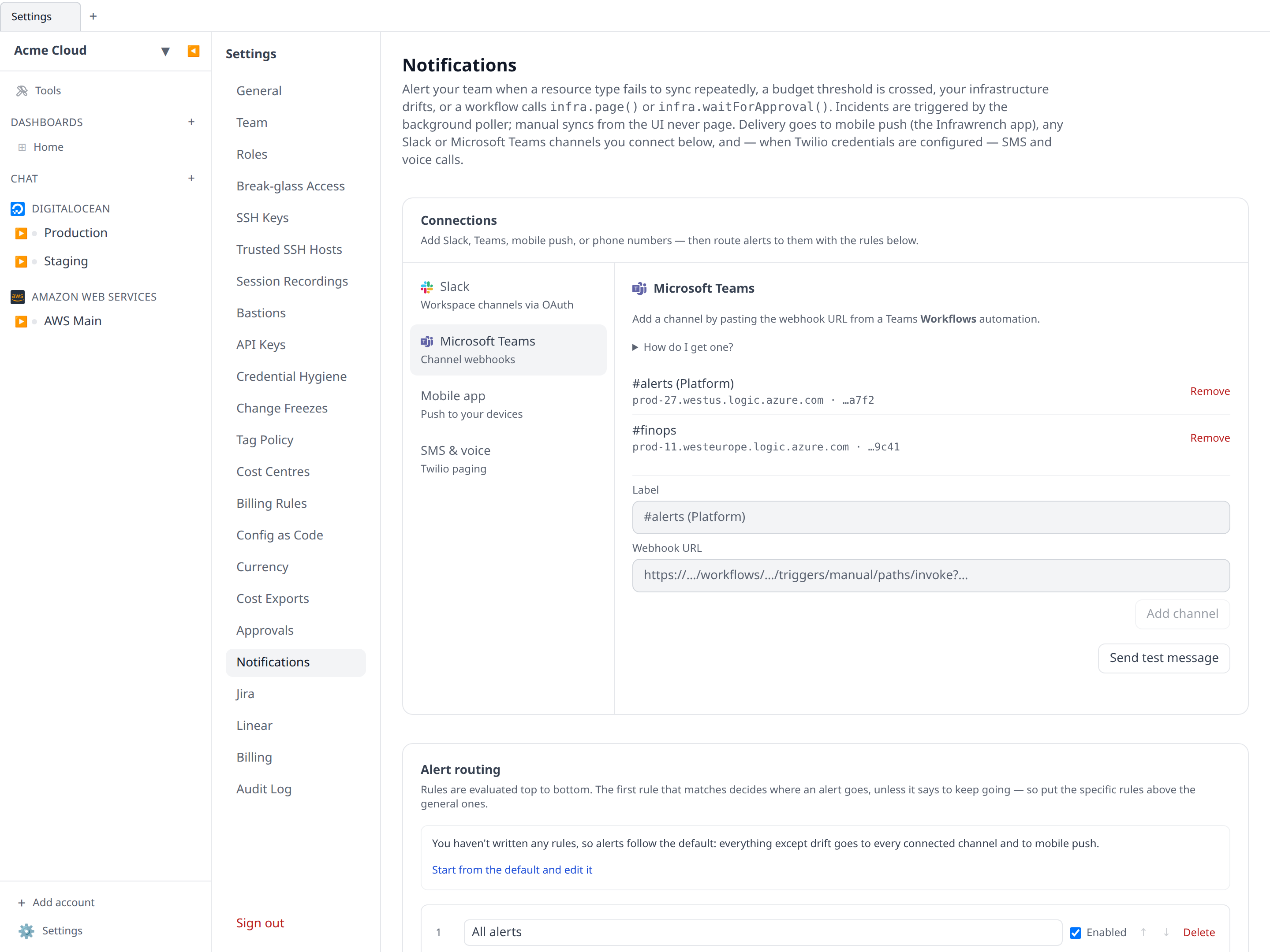
Then, in Infrawrench, go to Settings → Notifications, find the Microsoft Teams section, and enter:
- Label — a name for the channel, e.g.
#alerts (Platform). This is only for your own reference in this list. - Webhook URL — the URL you copied.
Press Add channel. Add as many channels as you like; each gets its own row.
The URL is a credential
A Teams webhook URL carries its own signature — anyone who has it can post to that channel. Infrawrench treats it accordingly:
- It is encrypted at rest, with the same AES-256-GCM scheme used for provider credentials.
- It is never returned by the API or shown again after you add it. The list shows only a hint — the host plus the last four characters — so you can tell two channels apart.
- Only URLs on Microsoft-operated hosts are accepted (
*.api.powerautomate.com,*.api.powerplatform.com,*.logic.azure.com,*.flow.microsoft.com, and legacy*.webhook.office.comconnectors). Anything else is rejected when you add it.
To change a channel’s URL, remove the row and add it again.
Choosing what each channel receives
Adding a channel makes it a destination; which alerts reach it is decided by your alert routing rules. That is what lets a #finance channel take budget crossings without also getting every sync failure — and, unlike the per-channel checkboxes this replaced, what lets it take only the crossings over $500 on the production account.
Until you write a rule, an organization routes everything except resource drift to every connected channel, so a channel you add today starts receiving alerts immediately. Drift is the exception because it is a continuous feed rather than an exceptional event; what counts as drift, and how often a digest may go out, is configured once for the whole organization in Settings → Notifications → Resource drift alerts.
Unlike the mobile push toggles, which each member sets for themselves, routing is org-wide — it takes the Organization settings permission to change.
Use Send test message to post to every channel you’ve added, ignoring the routing rules. If a send fails, the error from Microsoft is shown verbatim; an HTTP 404 almost always means the Workflow was deleted or switched off on the Teams side.
What the messages look like
Each alert is an Adaptive Card: the headline in bold, the alert text below it, a small context line, and — for budget alerts, drift digests, pages and approval requests — a View in Infrawrench button that deep-links to the budget, the change timeline, the workflow, or the approvals inbox.
The body is plain text rather than markdown. Teams’ card renderer treats * as markup, so the same message that reads as bold in Slack would show literal asterisks here; Infrawrench sends Teams the unmarked version instead.
An approval request carries everything needed to decide without opening the app: what is being approved, the workflow and run that raised it, whether a person or a schedule started that run, when the request expires, and the fact that no decision counts as a denial. Its button lands on Settings → Approvals.
Legacy Office 365 connectors
If you have an older Incoming Webhook connector URL (on *.webhook.office.com), it still works and Infrawrench still accepts it. Microsoft is retiring Office 365 connectors in Teams and disables them in May 2026, so move those channels over to a Workflows webhook before then: create the new webhook as above, add it as a new channel, and remove the old row.
Turning it off
Removing a channel stops delivery to it and leaves the rest alone. Infrawrench does not delete the automation on the Teams side — to stop it entirely, delete or turn off the Workflow from the Workflows app in Teams.
Interaction with the paging switch
Sync-failure incidents respect the org’s master Paging enabled switch on the same settings page — turning it off silences incidents on every transport, Teams included. Budget alerts and pages are independent of it, exactly as they are for mobile push and Slack.